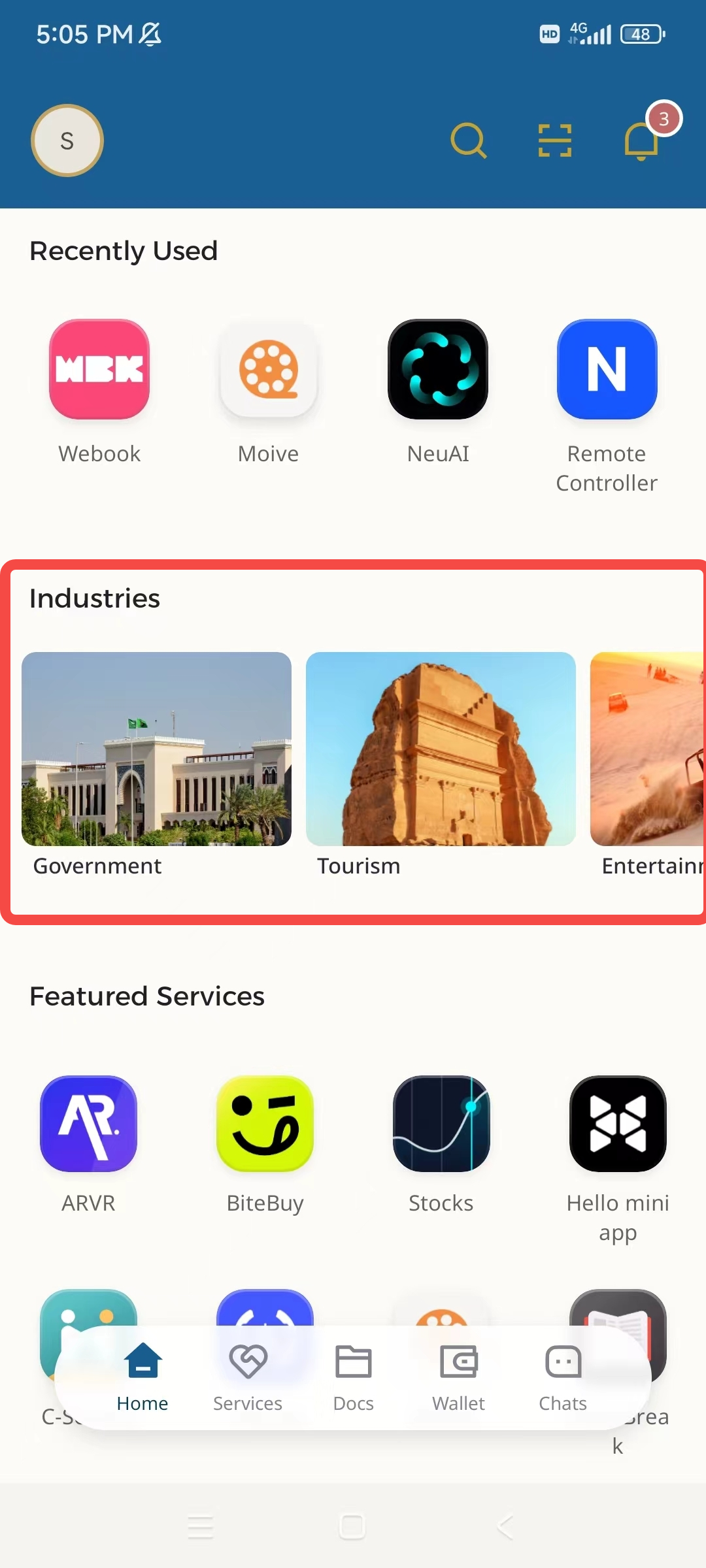
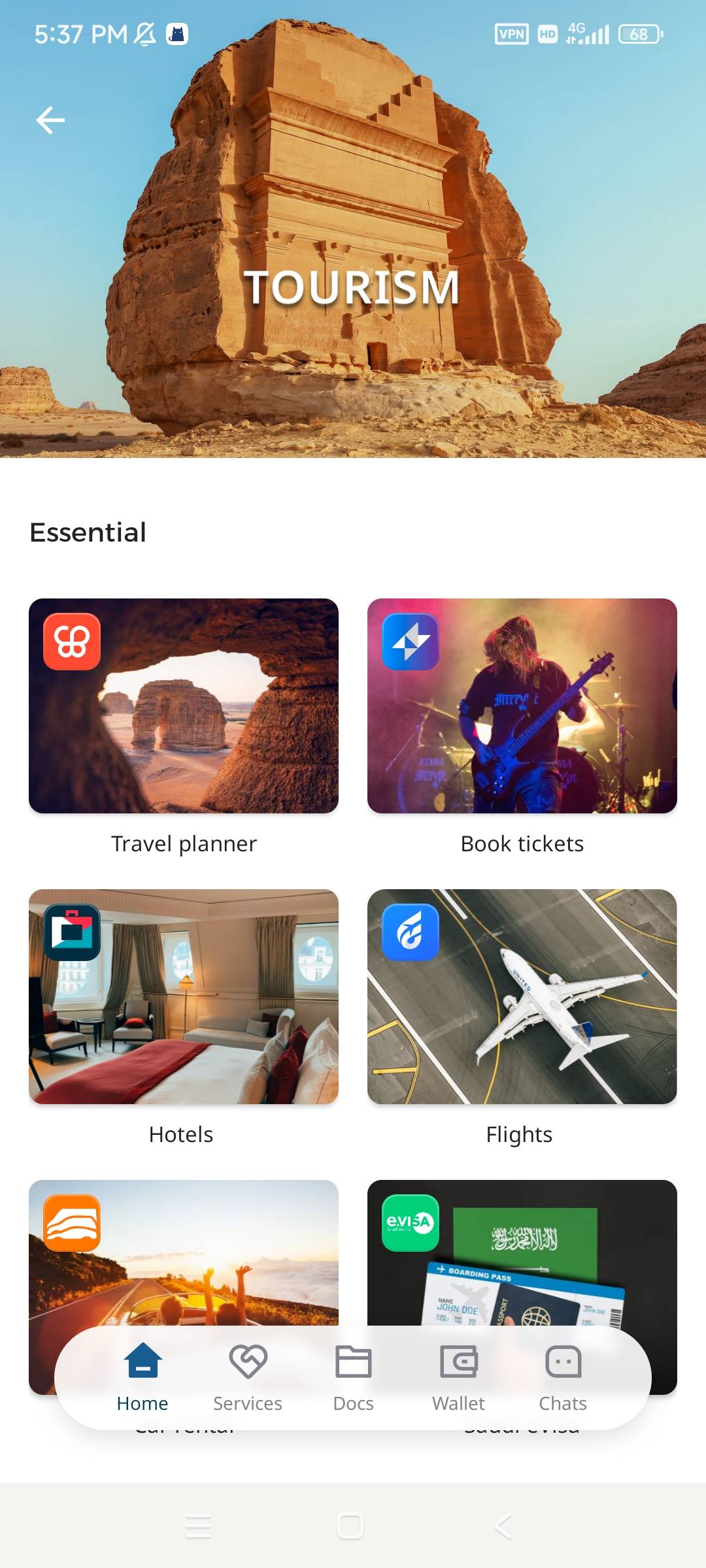
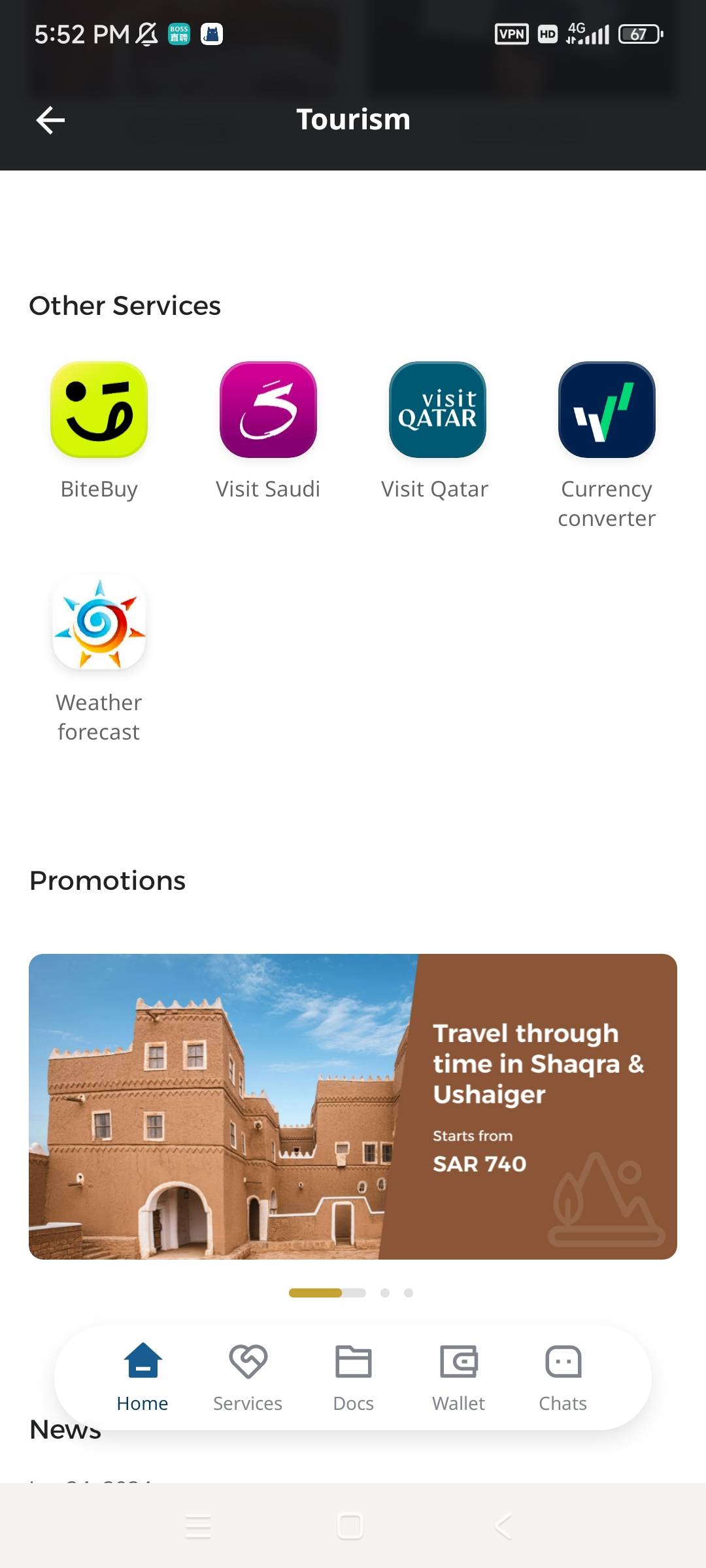
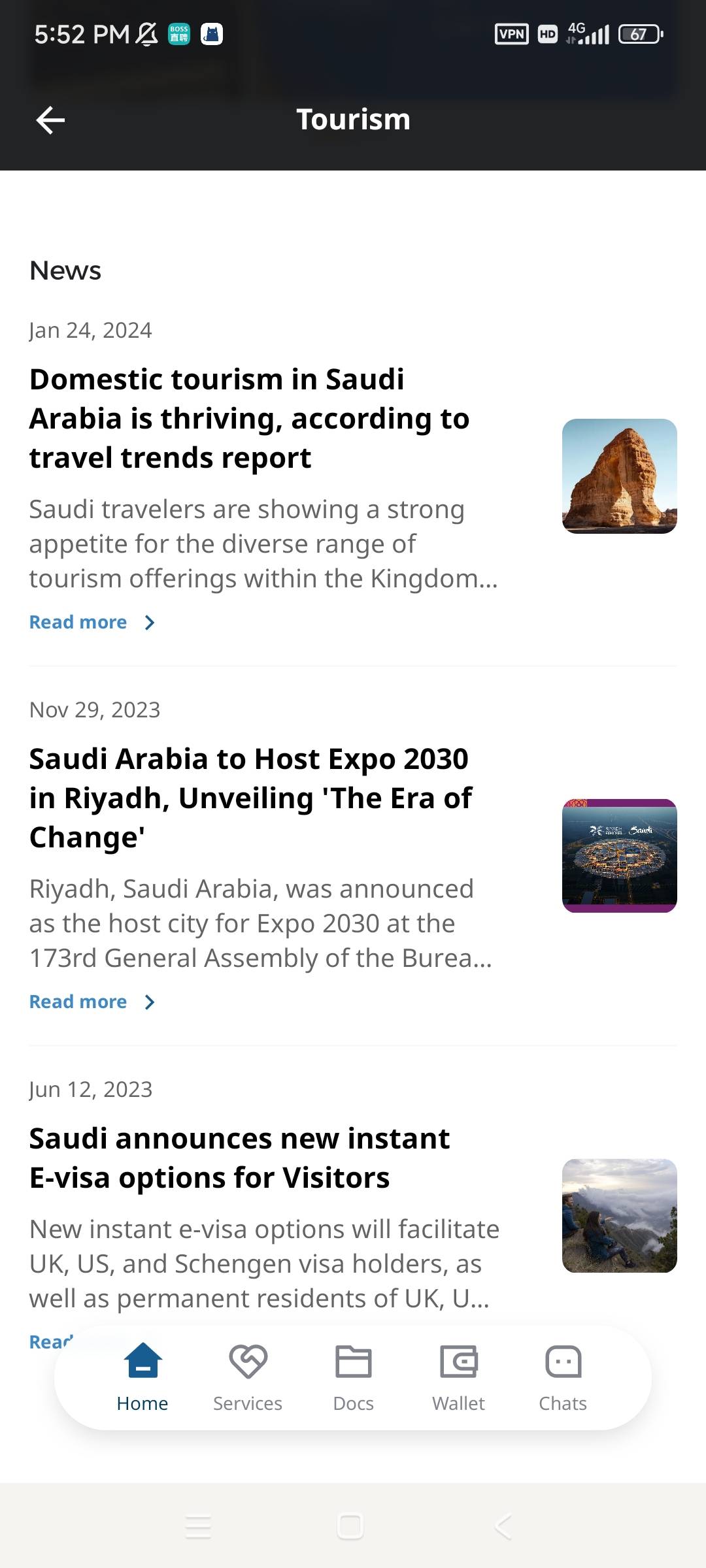
Appearance
Getting started
Neuxnet SuperApp Solution
What is a SuperApp
SuperApp is developed by a native system and runs on current popular systems like iOS and Android. SuperApp integrates Mini App Container and Mini App Store builds the running environment of Mini App, then SuperApp can download and run Mini App. At the same time, SuperApp can be published to Apple Store and Google Play for users to download. SuperApp supports native iOS/Android mobile OS capabilities like Camera, NFC, Bluetooth, Microphone, Mobile Biometrics, Scan QR code, etc.
SuperApp Solution Architecture
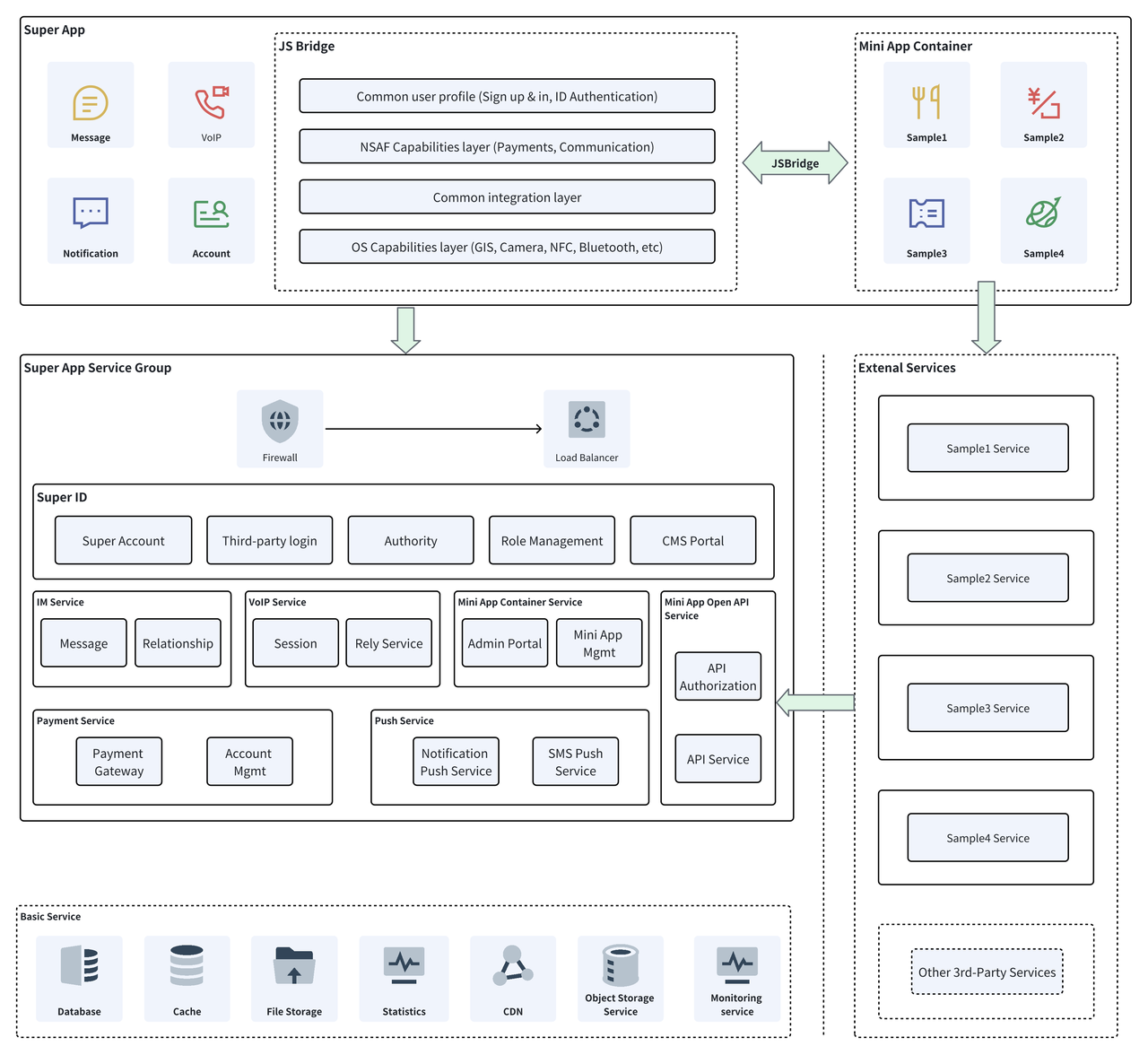
Super App With Mini Apps - A 3rd-Party Service Integration Approac
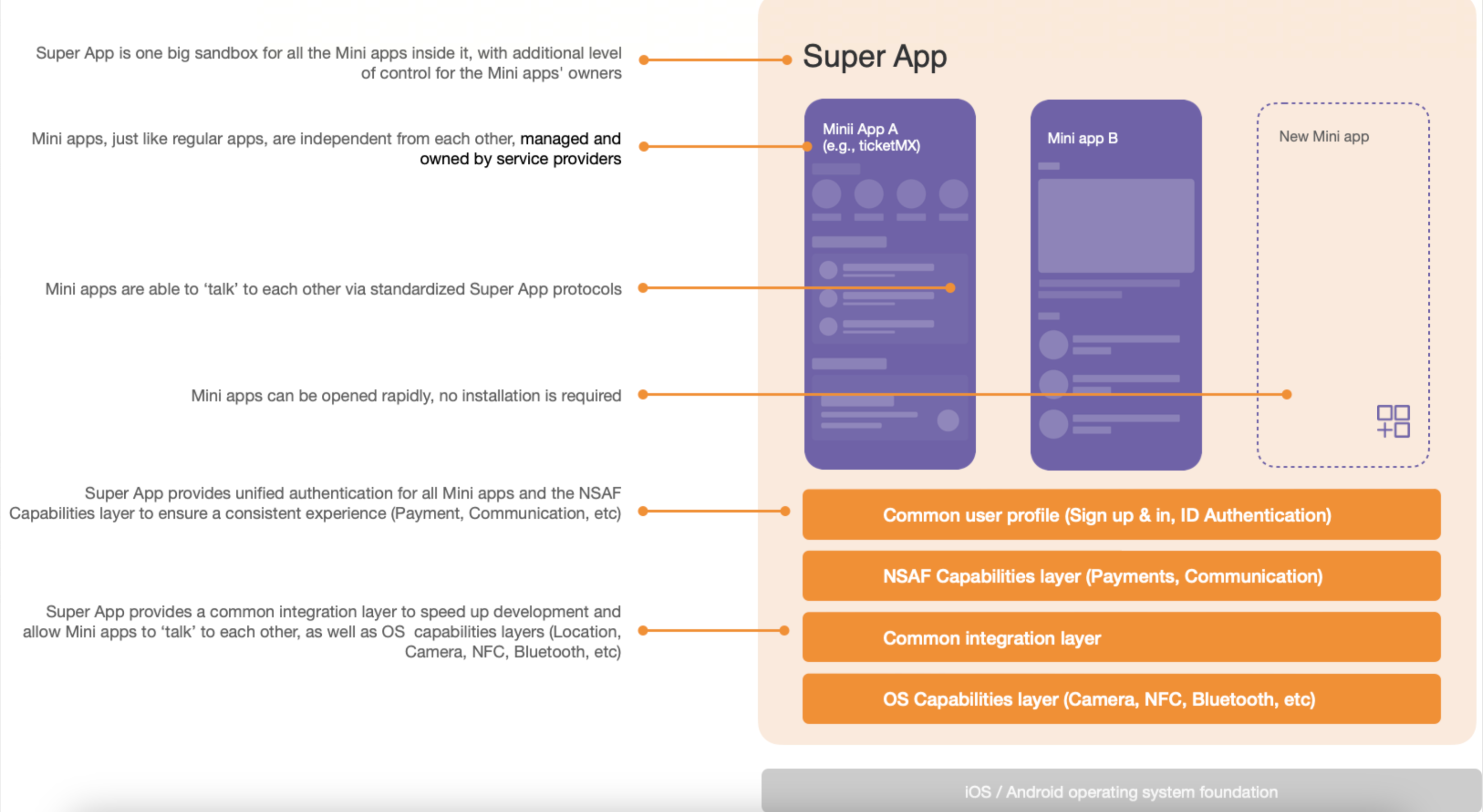
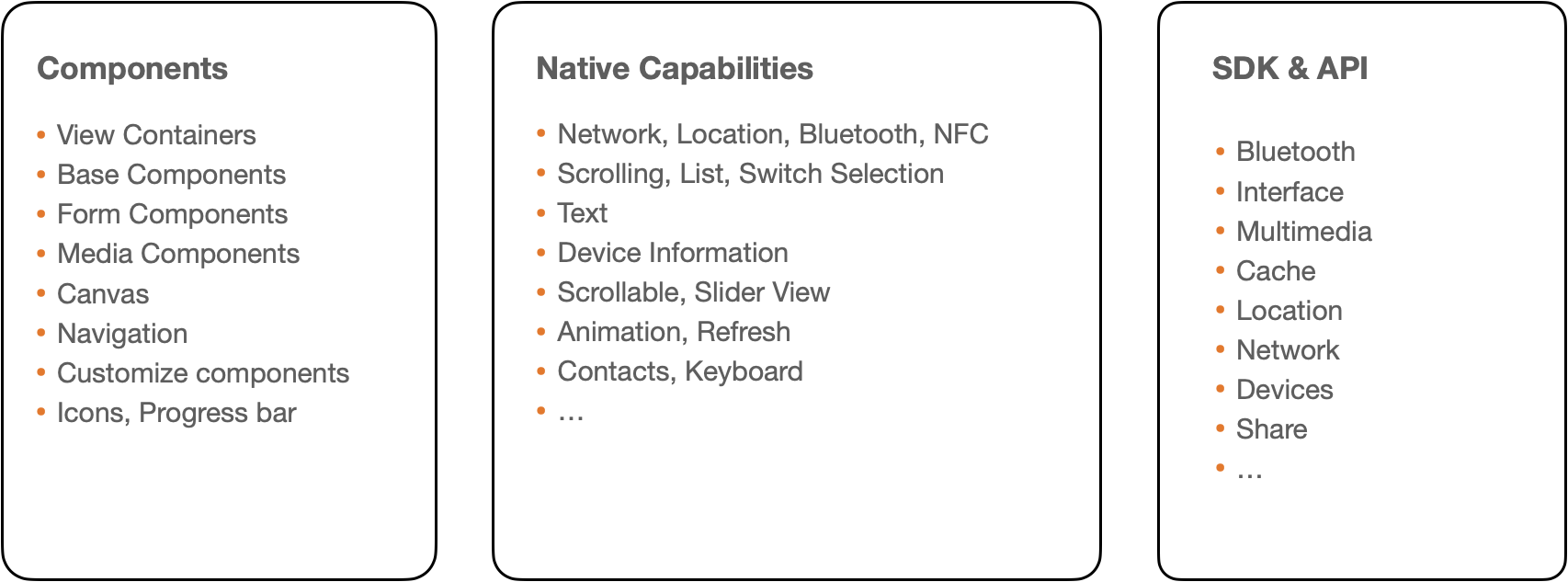
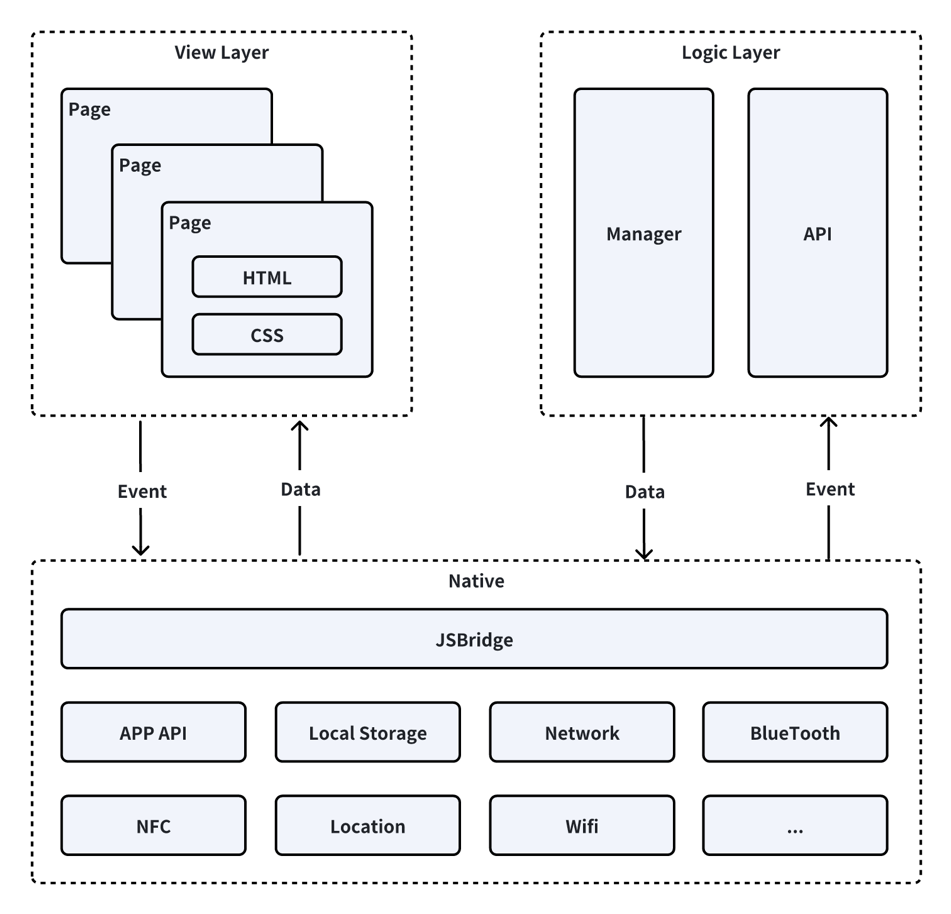 The Mini App development framework is designed to allow developers to develop services with a native app experience in Super App by the simplest and most efficient means possible.
The Mini App framework system includes Logic Layer (App Service) and View Layer (View).
The Mini App provides its own view layer description languages HTML and CSS, and a logic layer framework based on JavaScript, as well as a data transfer and event system between the view layer and the logic layer, allowing developers to focus on data and logic.
Based on the Mini App Platform can quickly develop a Mini App
Mini App - LifeCycle
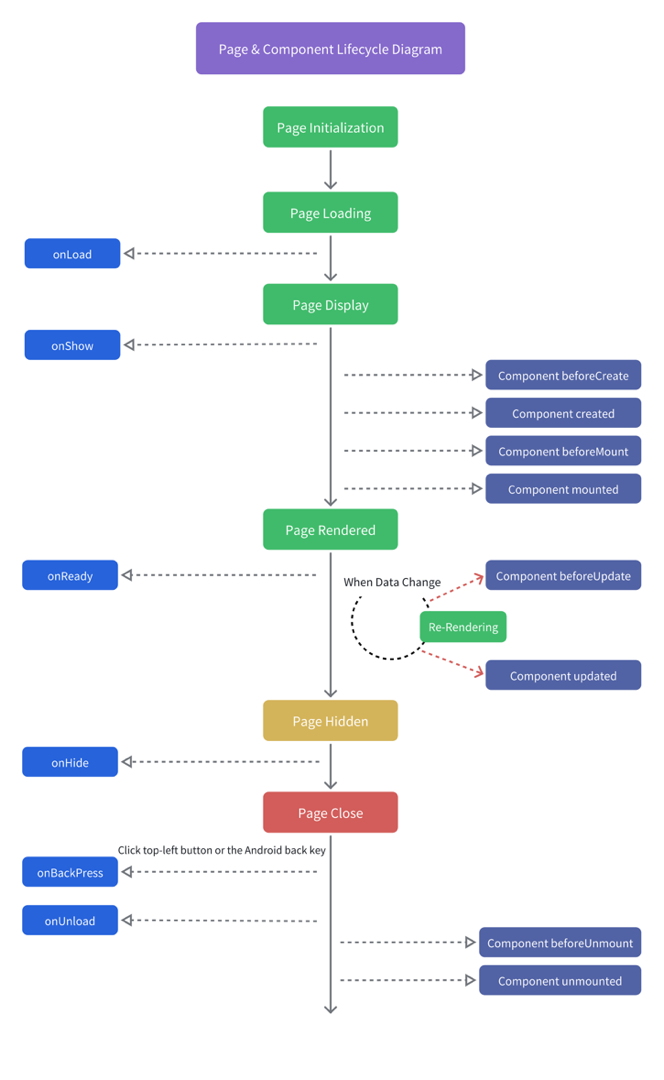
The Mini App life cycle is divided into application life cycle and page life cycle.
Application life cycle including onLaunch, onShow, onHide state, onLaunch, onShow can obtain the relevant parameters when opening the Mini App path, Query, scene, shareTicket, referrerInfo, Register as App({}), a small program only has one App({}).
The Page life cycle includes onLoad, onShow, onHide, onReady, onUnload, and onLoad. Query parameters that other pages call when opening the current Page are registered as Page({}). Each Page has and must have one Page({}).
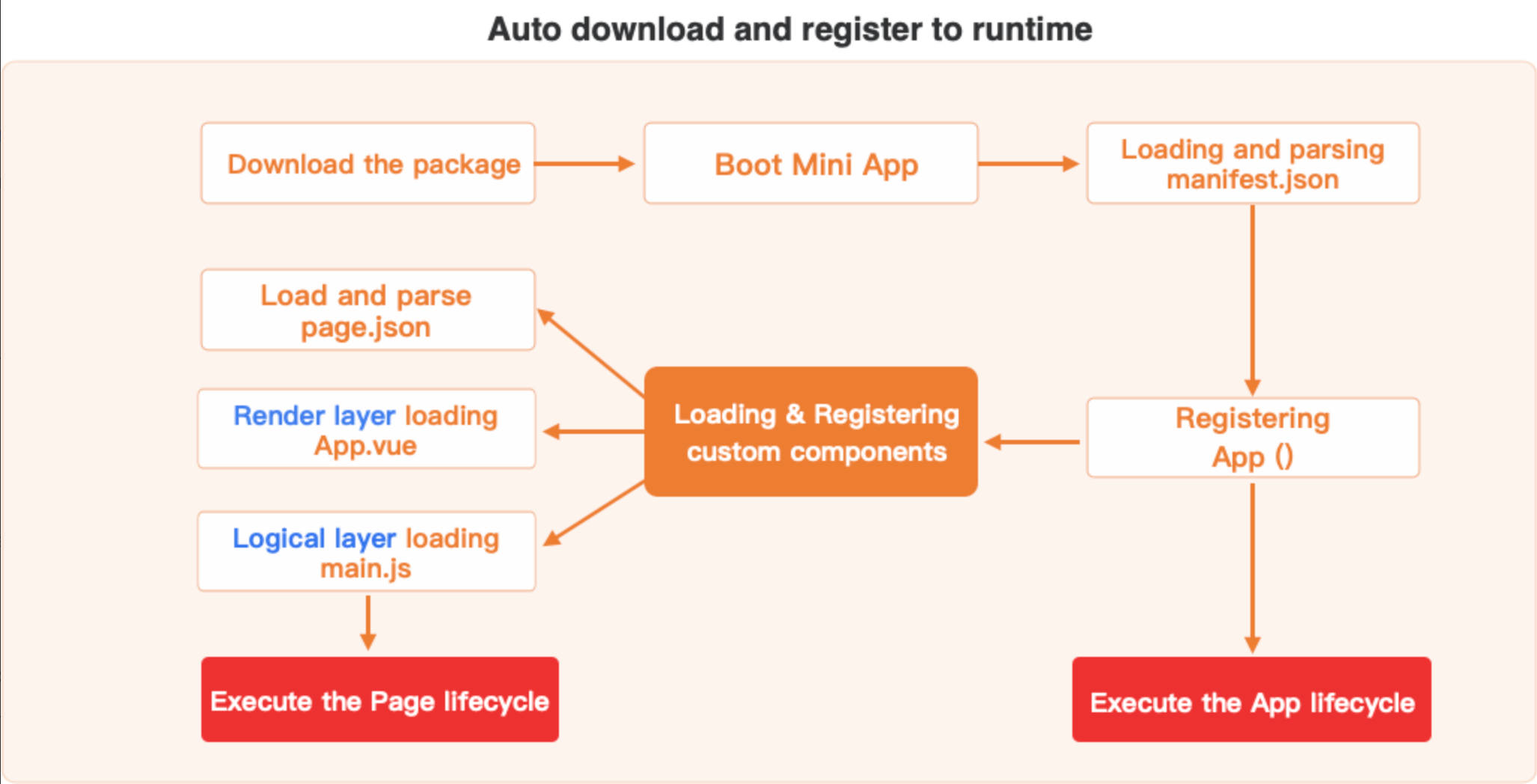
Application and page lifecycle
Main Process of Reviewing and Publishing Mini App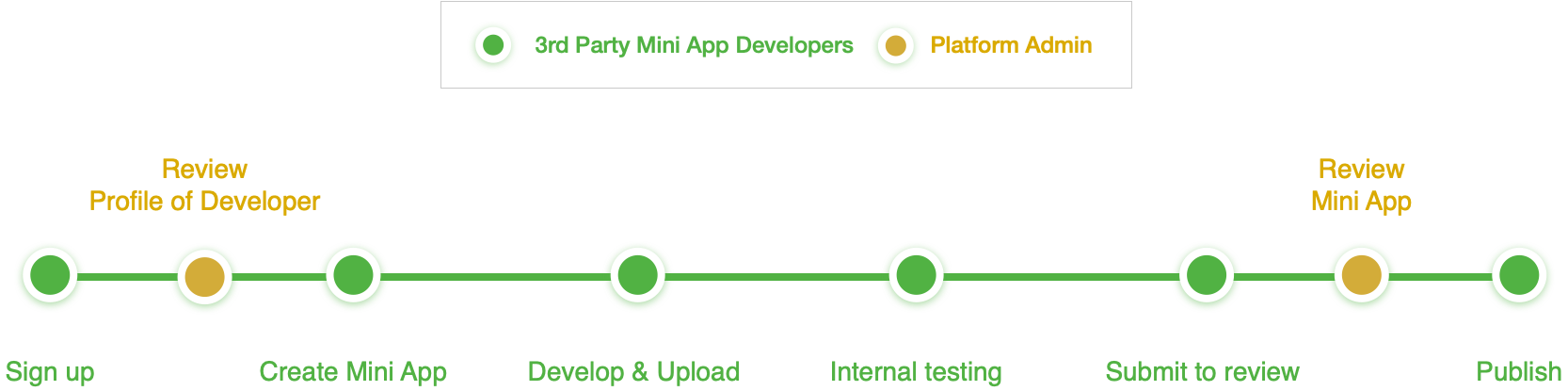
Mini App Development Framework
What is a Mini App
Mini App is based on H5 capabilities and runs in a standalone WebView. Data and events are delivered through a bridge programme built by Mini App Container and WebView. When Mini App Container system is authorized by users, the Mini App can access the corresponding data and hardware through the bridge programme.
Mini App Development Technology Stack
| Development Language | Javascript/Typescript |
|---|---|
| Development framework | Vue.js |
| Layout method | Follow the Vue specification |
Glossary
| Name | Definition |
|---|---|
| NSuperApp | NSuperApp is a digital platform that simplifies access to services from governments and third parties. It offers essential capabilities for mini-app integration, enabling quick service delivery across diverse industries, including entertainment, culture, etc. |
| Live Activity | Real-time notifications are displayed on the homepage of NSuperApp when users interact with the Mini App or update information within the Mini App. |
| Mini Apps | Small applications or services within the NSuperApp. They are managed and organized by administrators through the CMS Portal and developed in the dev portal. |
| Mini App Space | Immersive Mini App environments of various themes provided by NSuper App operators through the CMS portal. Used to display services, news, banners, and other content for the NSuperApp users supporting different scenarios. |
| Mini App Dev Portal | The Mini App Dev Portal is an online platform for creating, managing, and publishing Mini Apps within the NSuperApp. It provides tools for developers to create, modify, debug, and publish Mini Apps, along with features for team collaboration and information sharing. |
| Mini App Admin Portal | The Mini App Admin Portal is a centralized platform for administrators to manage and oversee Mini Apps and developer teams within the NSuperApp. It enables administrators to review and approve Mini Apps, manage developer accounts, monitor activities, and ensure compliance with guidelines and standards. |
| NSuperApp CMS Portal | A platform within the SuperApp infrastructure designed to assist administrators in efficiently managing categories, Mini Apps, recommended content, and user interactions within the SuperApp. |
Management SuperApp Content
Overview
The CMS Portal is one of the SuperApp platforms. It allows administrators to efficiently manage categories, Mini Apps, and recommended content for the Super App. CMS Portal helps to arrange and improve how users interact with the super app.
Manage Mini App Store
Categories in the CMS Portal allow administrators to organize Mini Apps, making it easier to manage and navigate within the Mini App store. Admins can create, edit, and delete categories, customize their appearance, and configure Mini Apps within them. These categories help streamline user experience by grouping related applications together and can be featured on the Super App's homepage and search page for easy access.
List Categories in Mini App Store
View the category list
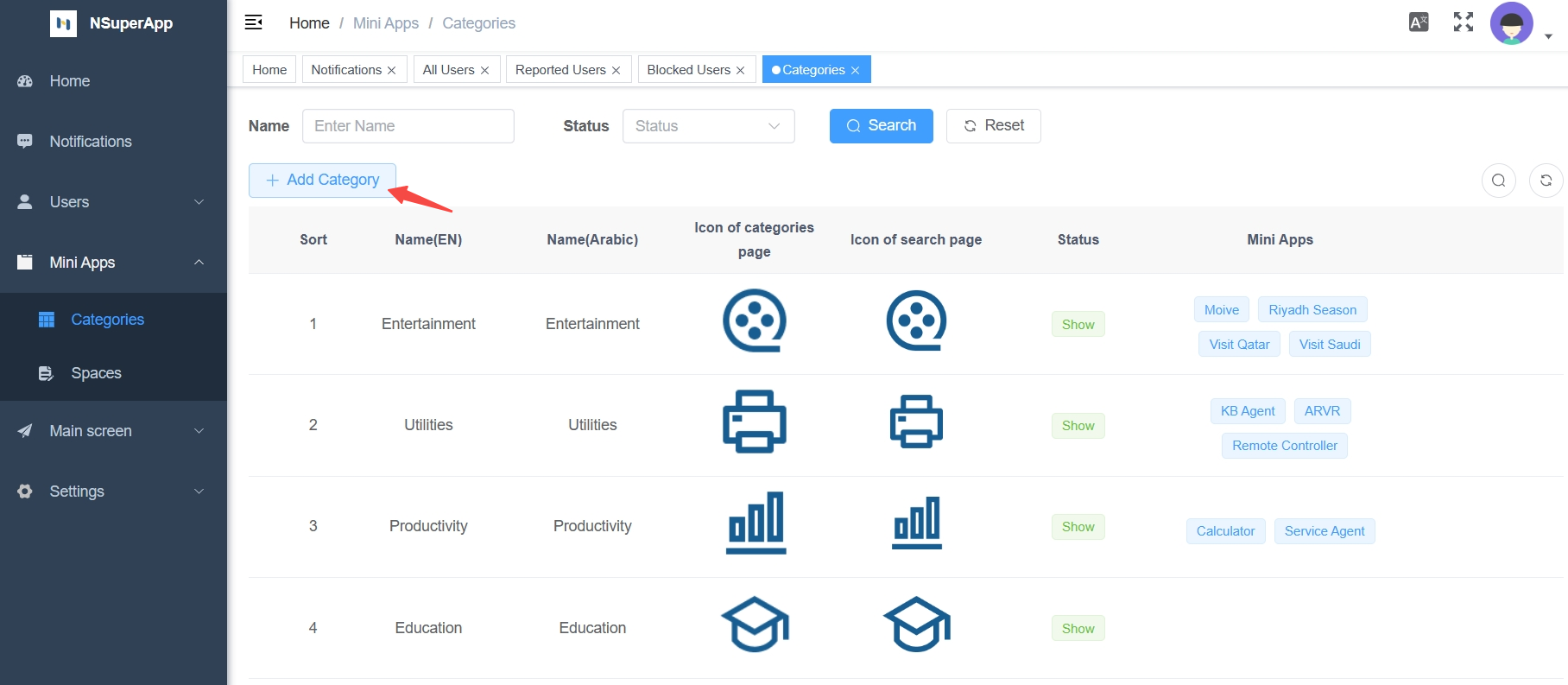
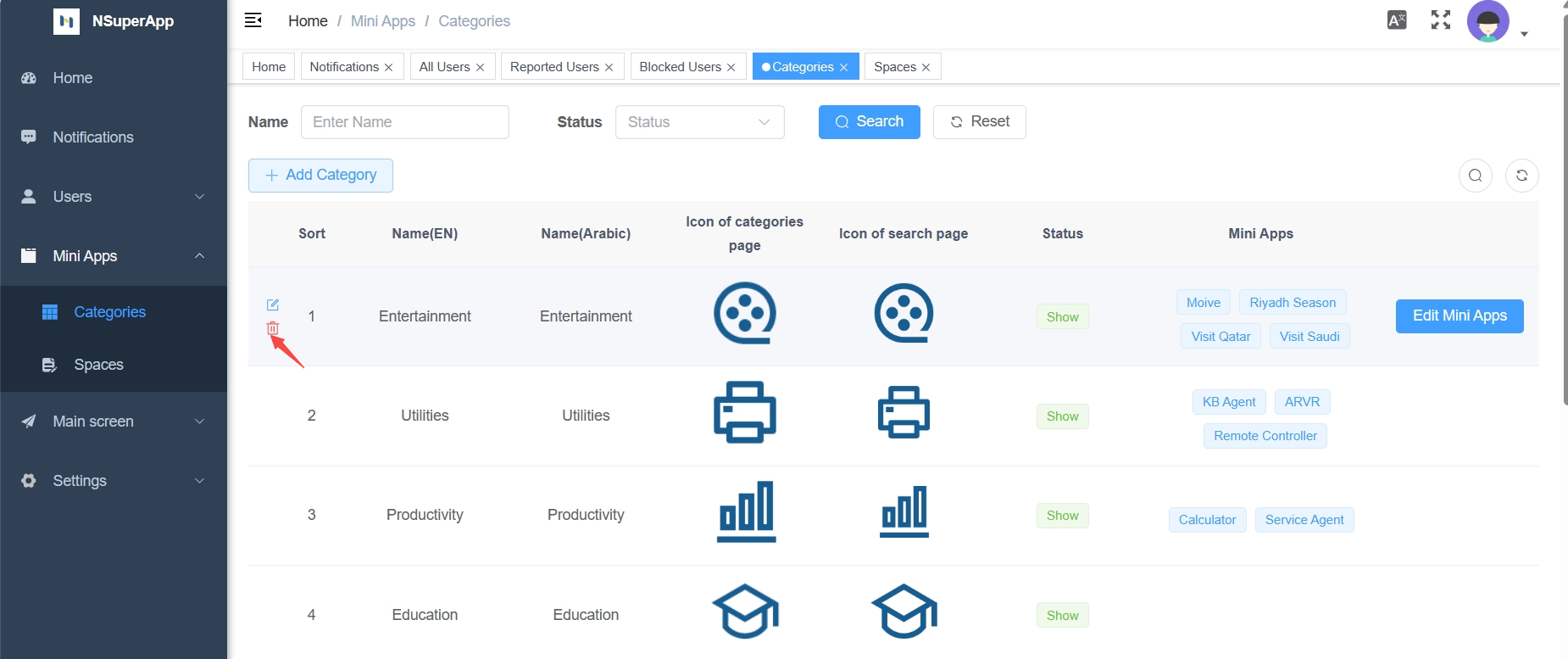
To view the category list, simply click on "Mini Apps" and then "Categories". 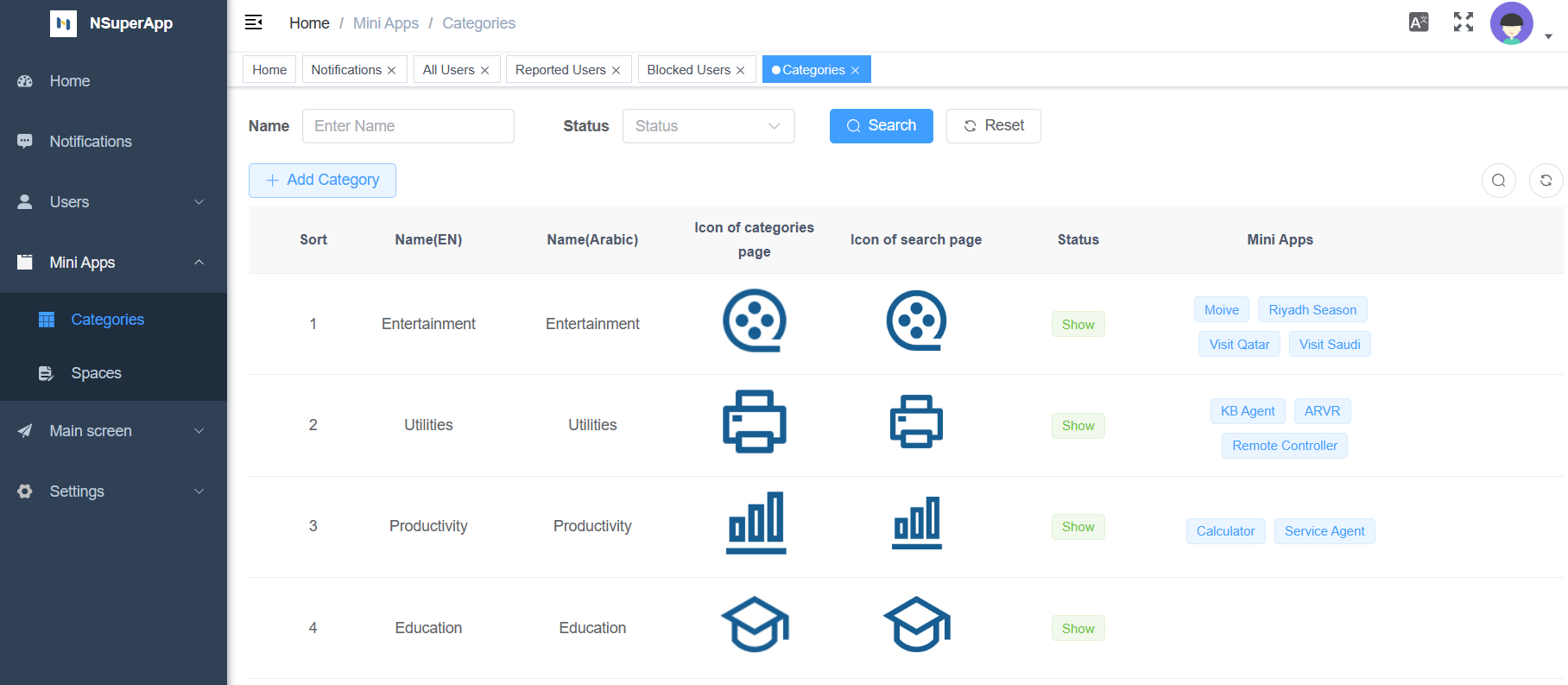
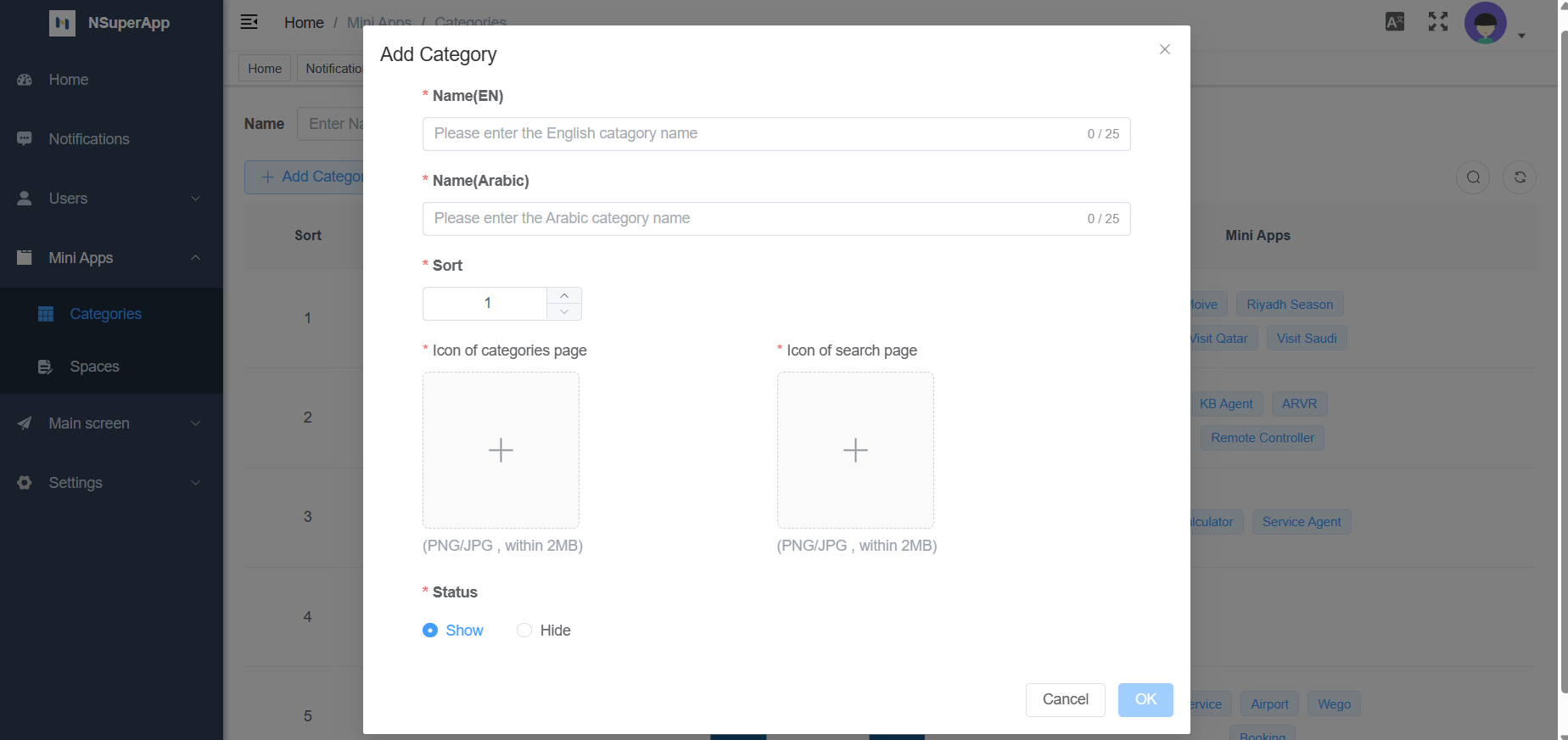
Add a new category To add a category, click the "Add Category" button on the categories page. A pop-up window will appear. Then, configure the category information including its name, icon, sorting order, and status, before clicking "OK" to confirm.
Modify a Category
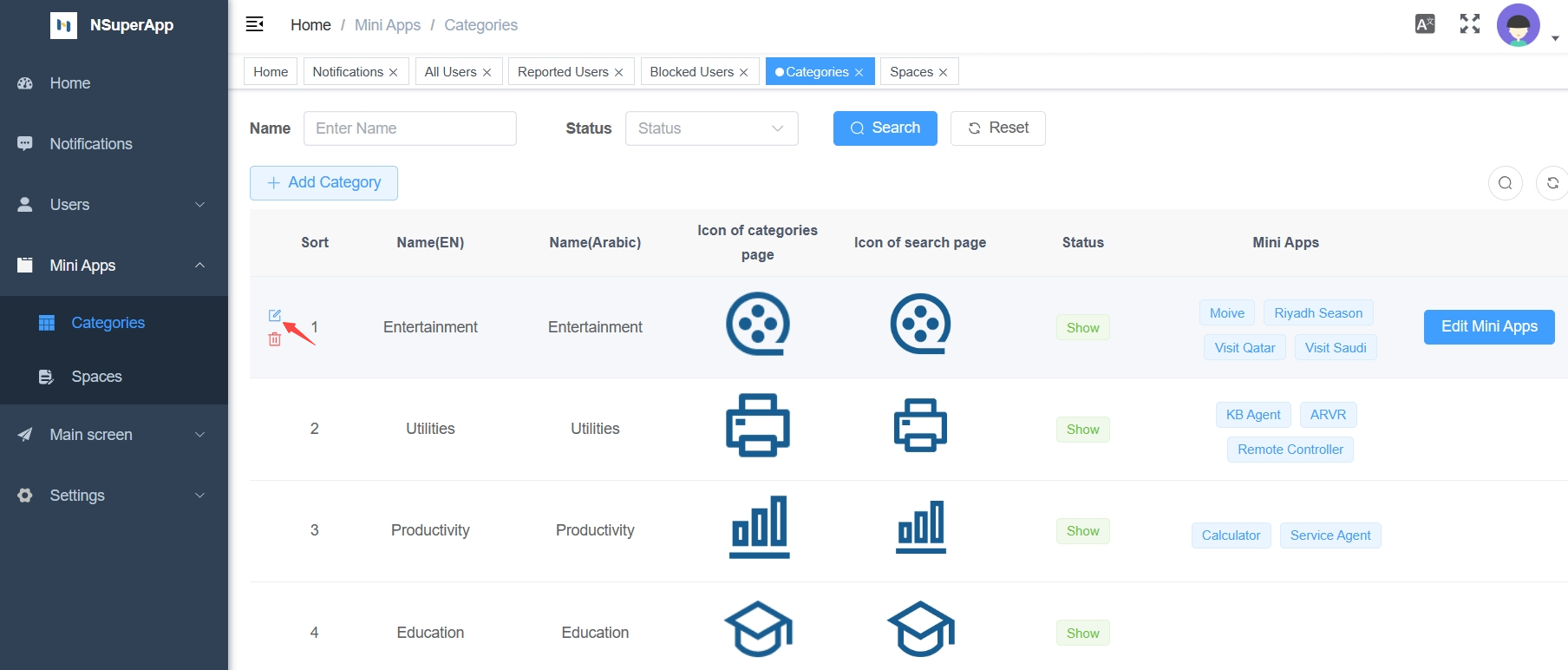
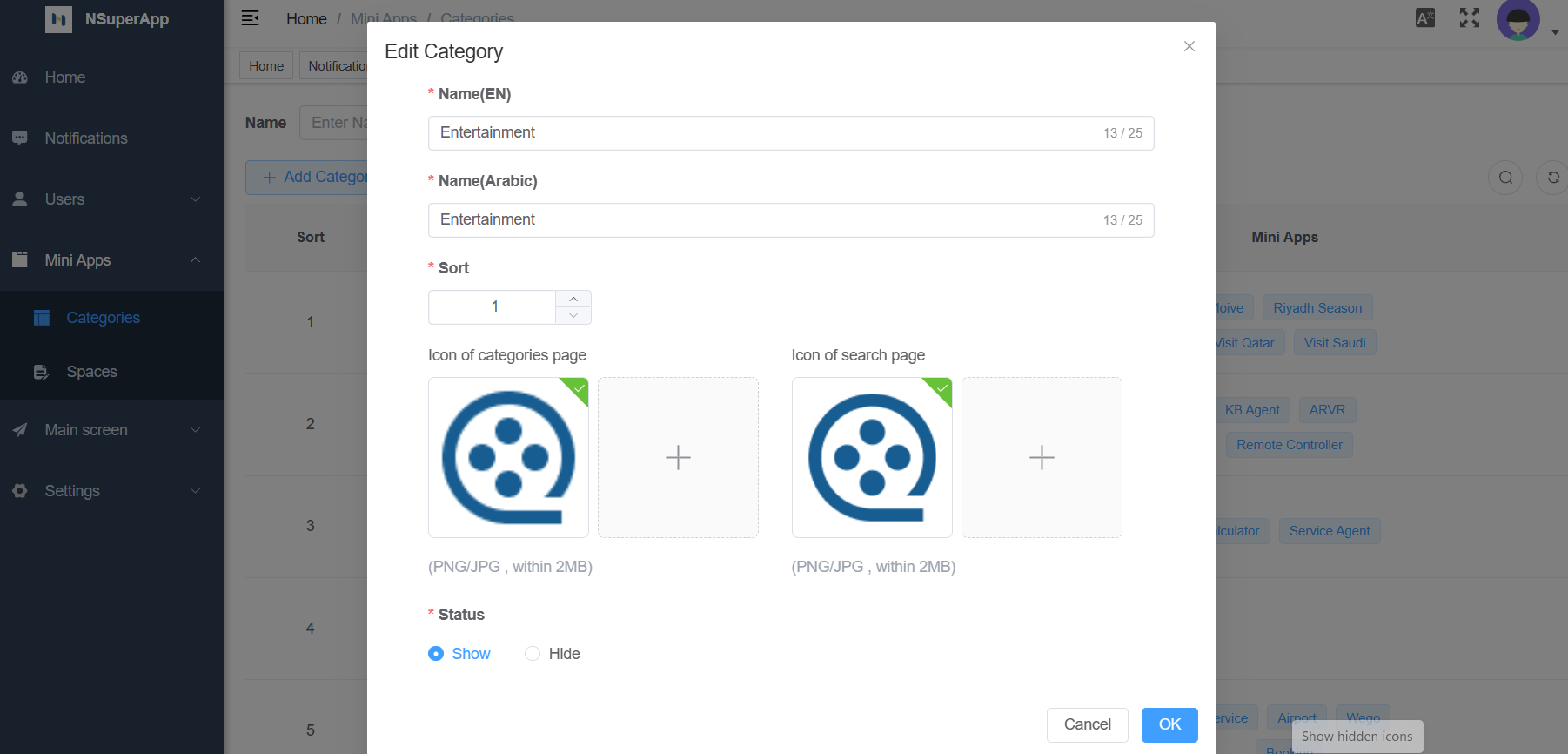
To edit a category, first, navigate to the category you want to modify. Then, click on the "Edit" icon, which will open an editing popup. From there, make any necessary changes to the category information. Once done, click "OK" to confirm the modifications.
Delete a category
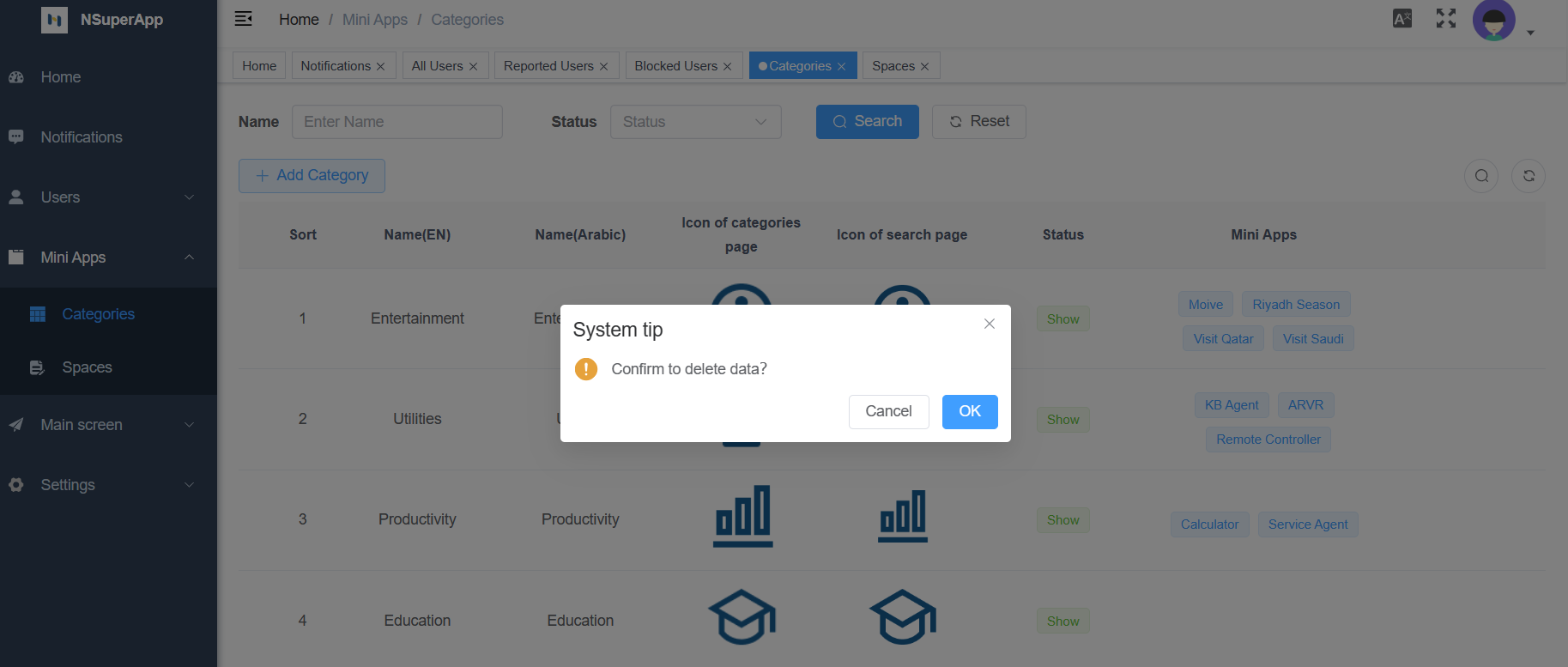
To delete a category, select the category you want to remove, then click on the "Delete" icon. A confirmation window will appear, asking if you're sure you want to delete the category. Click "OK" to confirm.
Configure Mini Apps in a Category
View the list of Mini Apps in a category
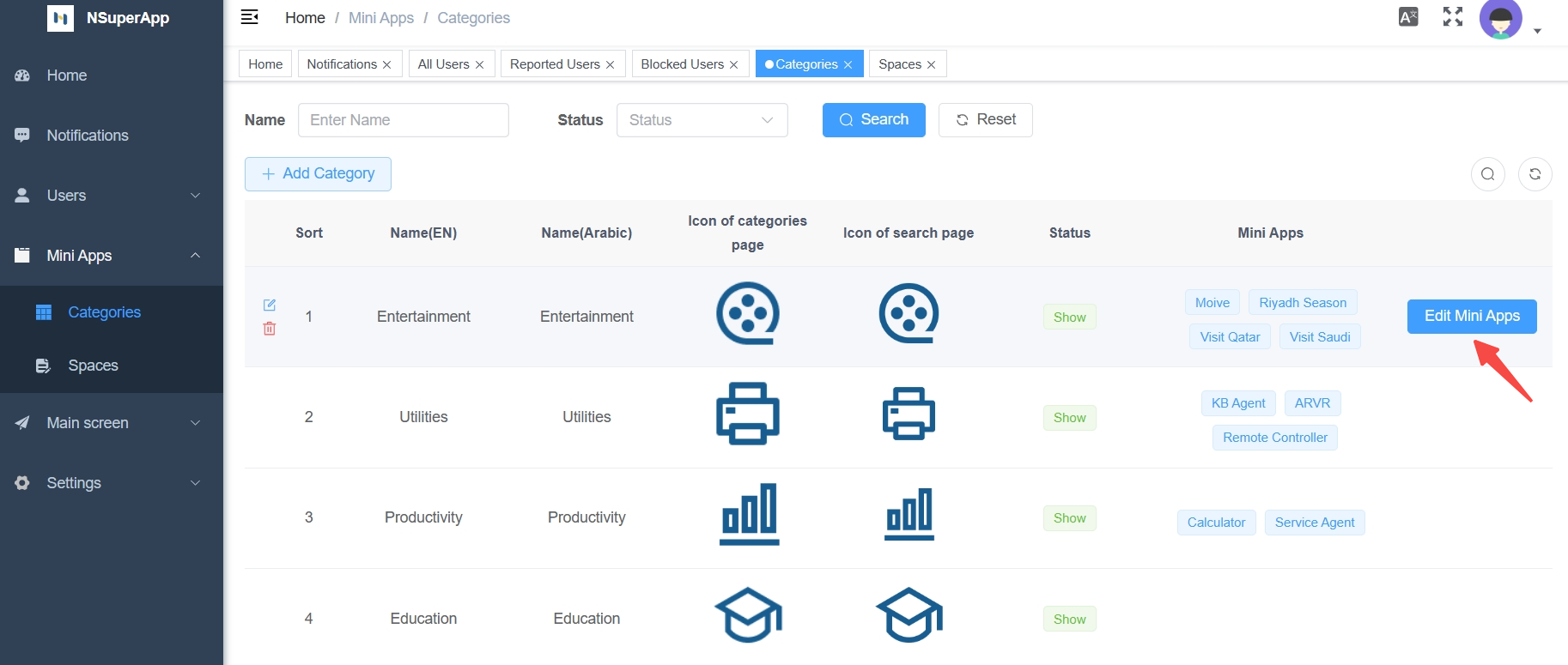
To configure a category, first, navigate to the specific category. Then, click on the "Edit Mini Apps" icon. This action will reveal the existing list of Mini Apps associated with the selected category, providing a clear overview of all Mini Apps within that category for further management.

Add Mini Apps under a category
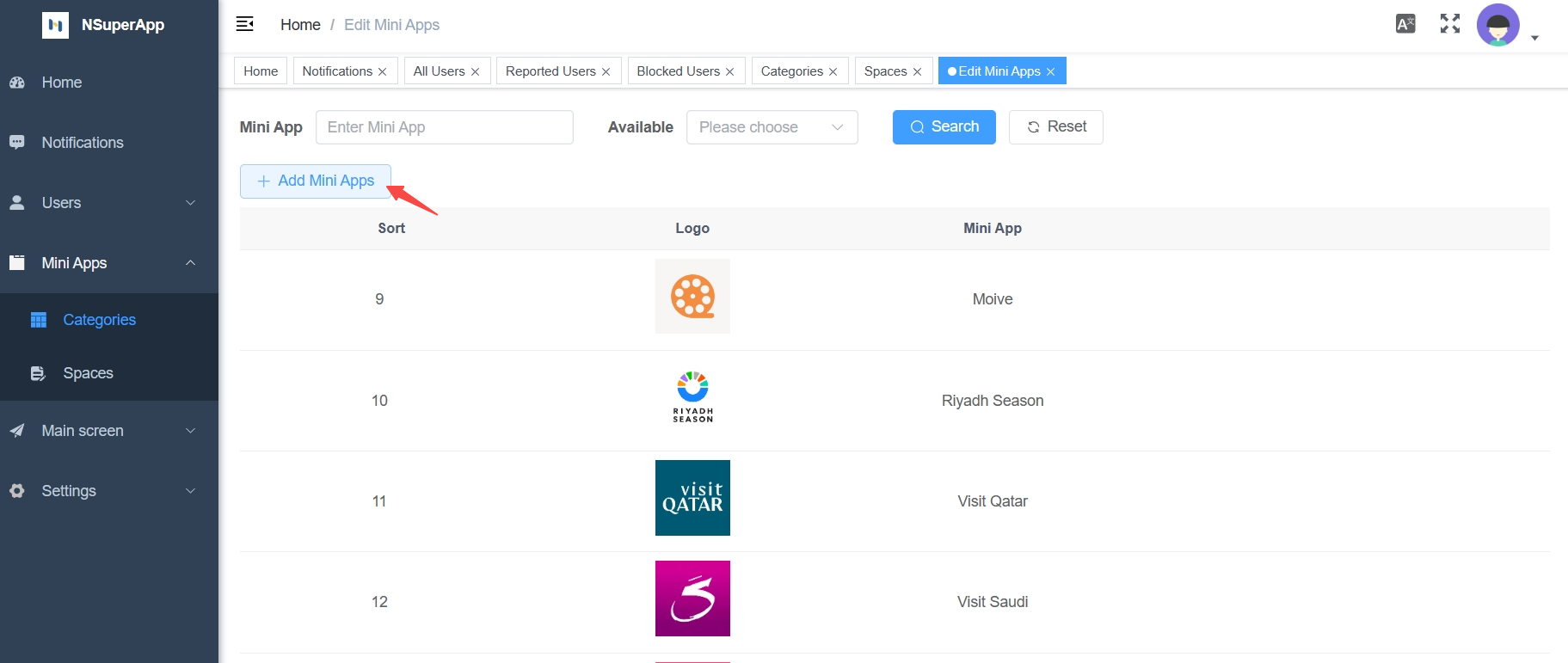
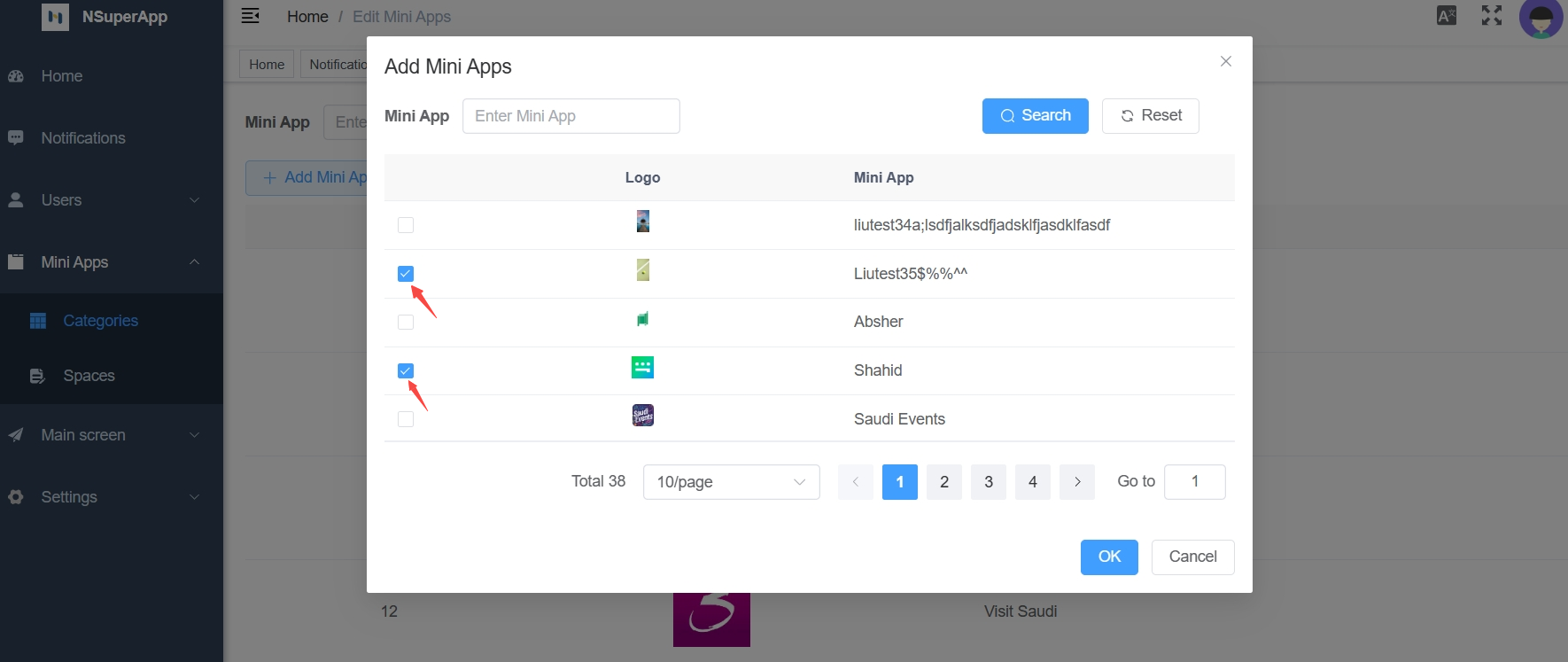
To add Mini Apps under a category, click on the "Add Mini Apps" button. A popup window will appear, allowing you to select the specific Mini Apps you want to add. After selecting the Mini Apps, click "OK" to confirm and add them to the category.
Modify the Display Order of Mini Apps
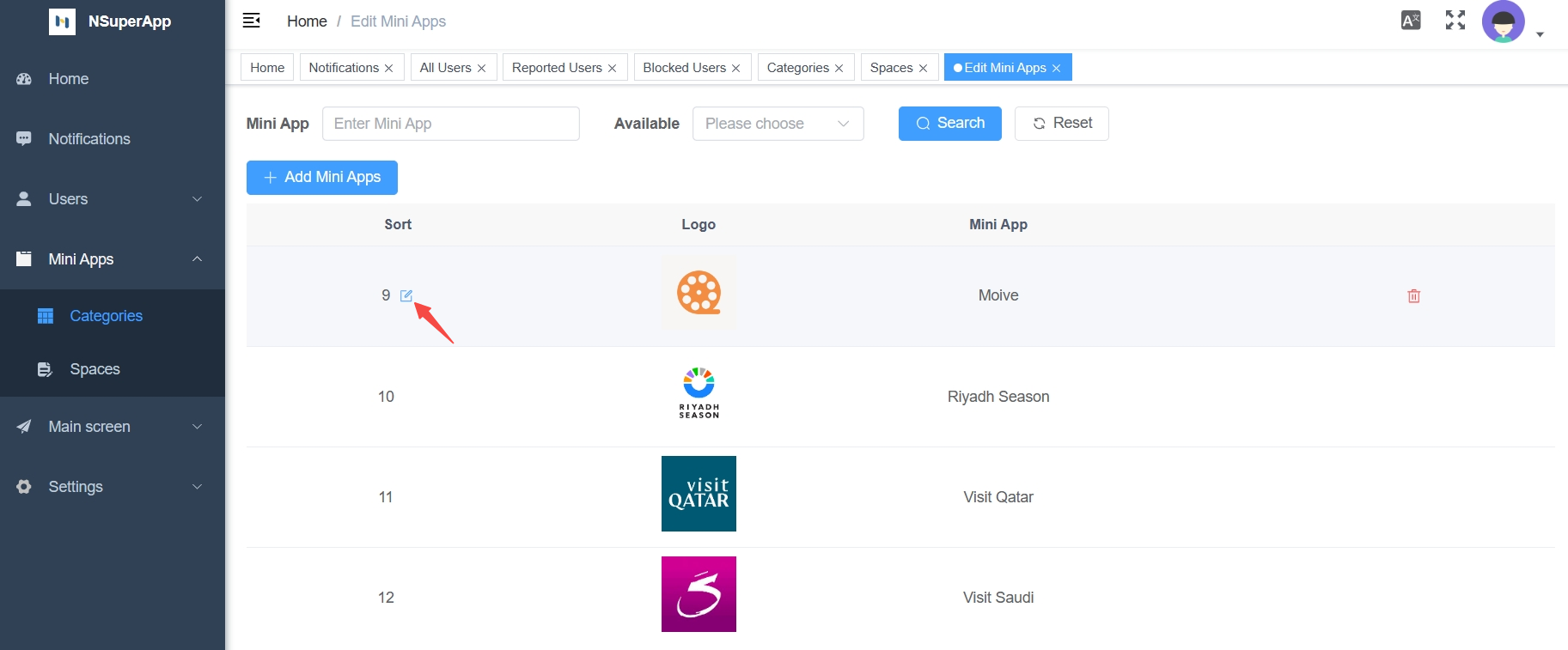
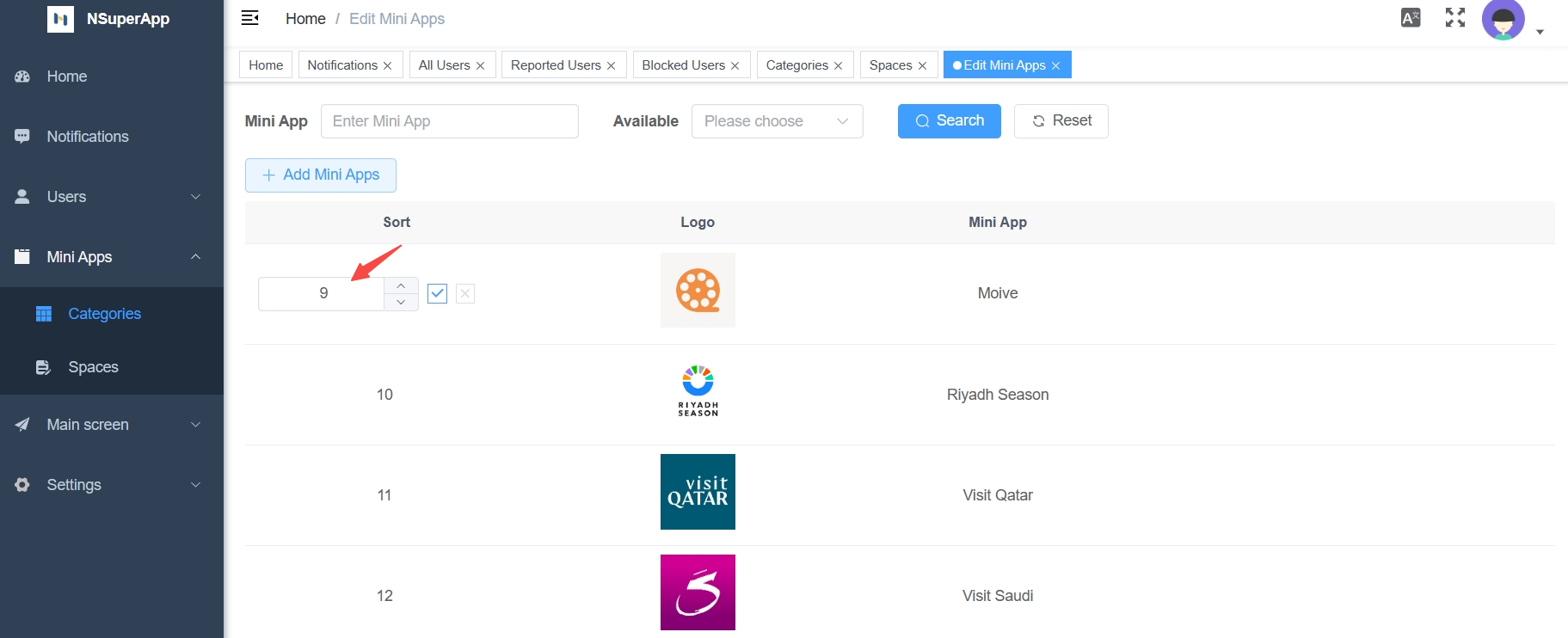
To edit a Mini App, first, go to the Mini App you want to modify. Then, click on the "Edit" icon. This will prompt the sorting number to become an input field. Next, enter the desired sorting number. Click "Confirm" to save the changes. It's important to note that if sorting numbers are the same, they will be sorted from the most recently edited to the oldest.
Delete Mini Apps from a category
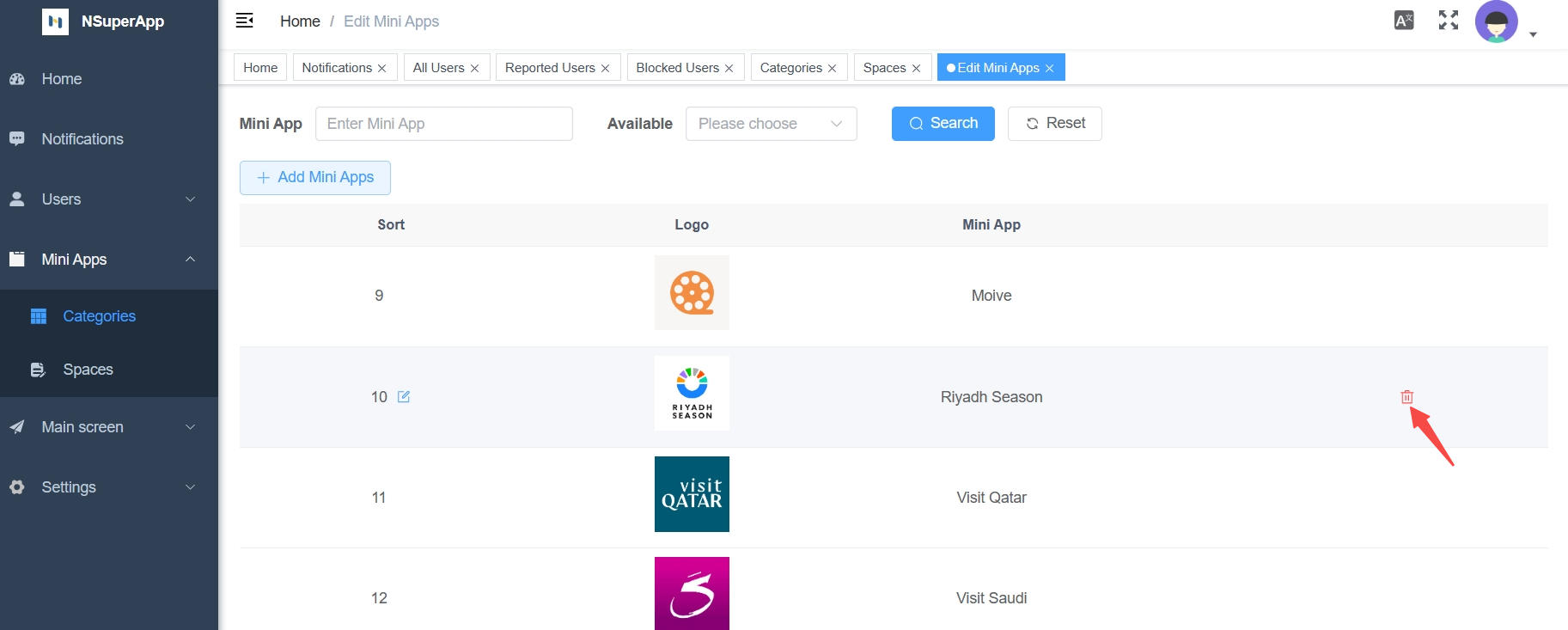
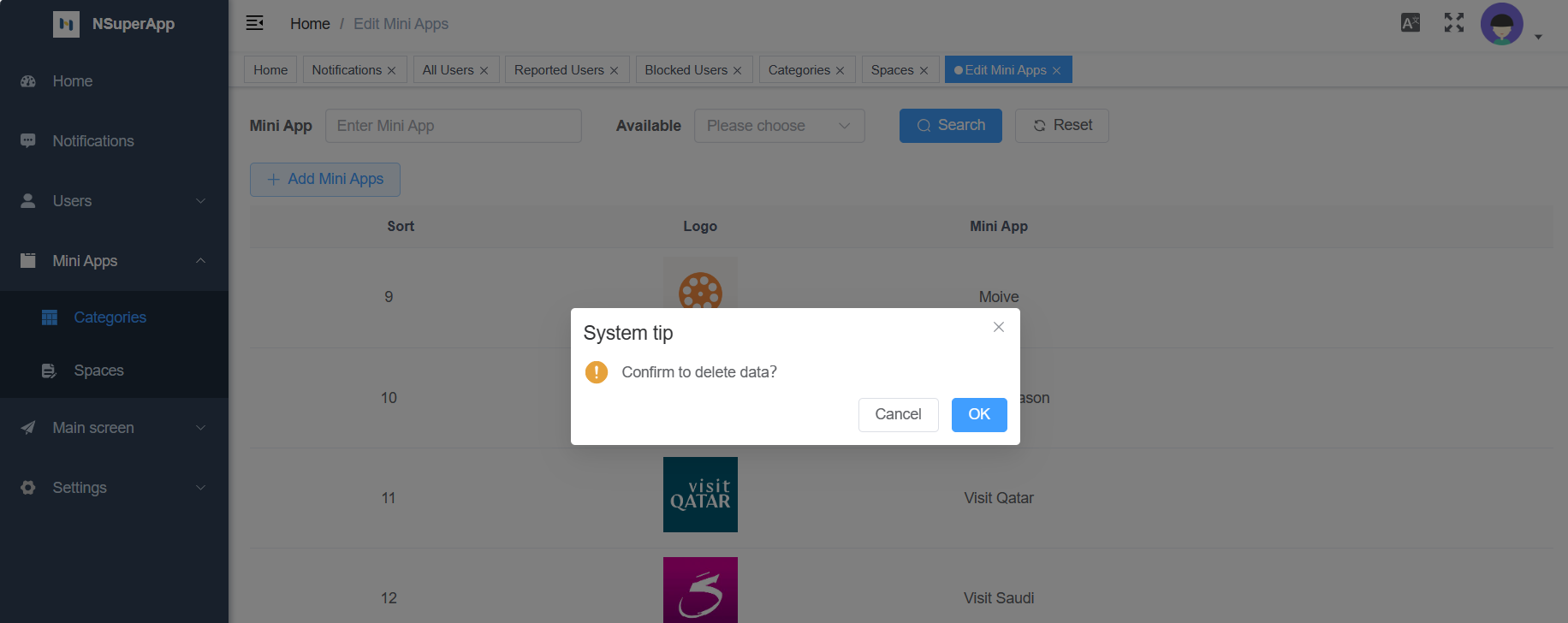
To delete a Mini App from a category, first, go the Mini App you want to remove. Then, click on the "Delete" icon. A confirmation window will appear. Finally, click "OK" to confirm the deletion.
View Mini App store
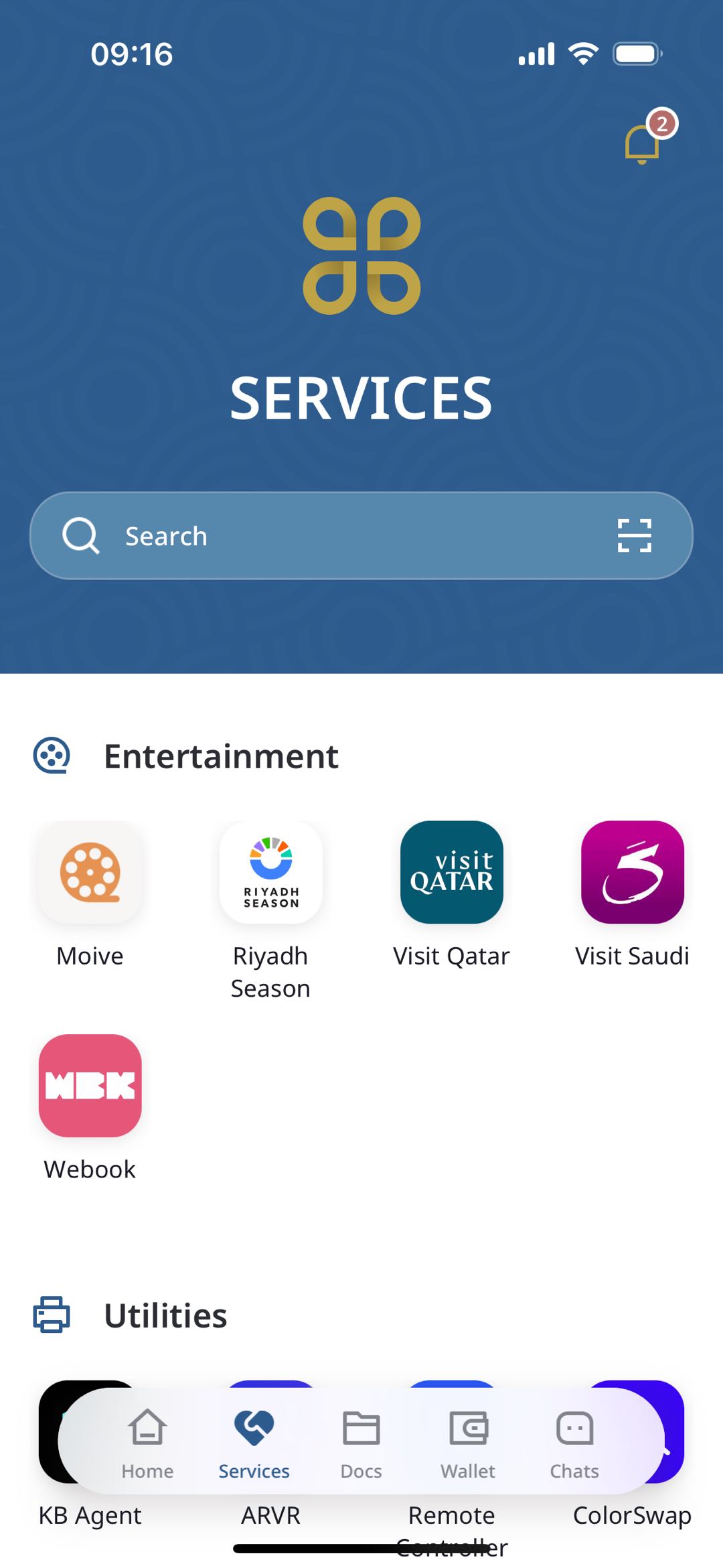
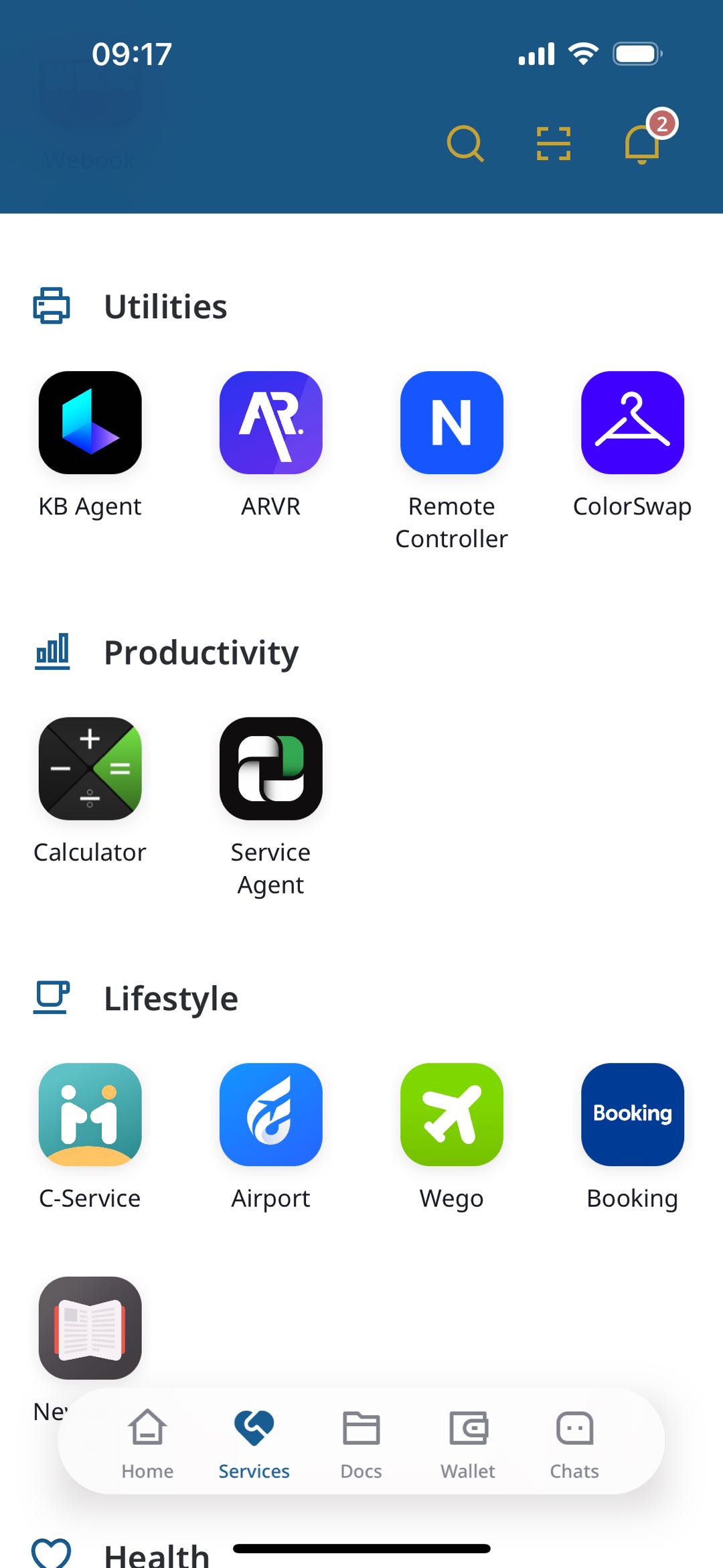
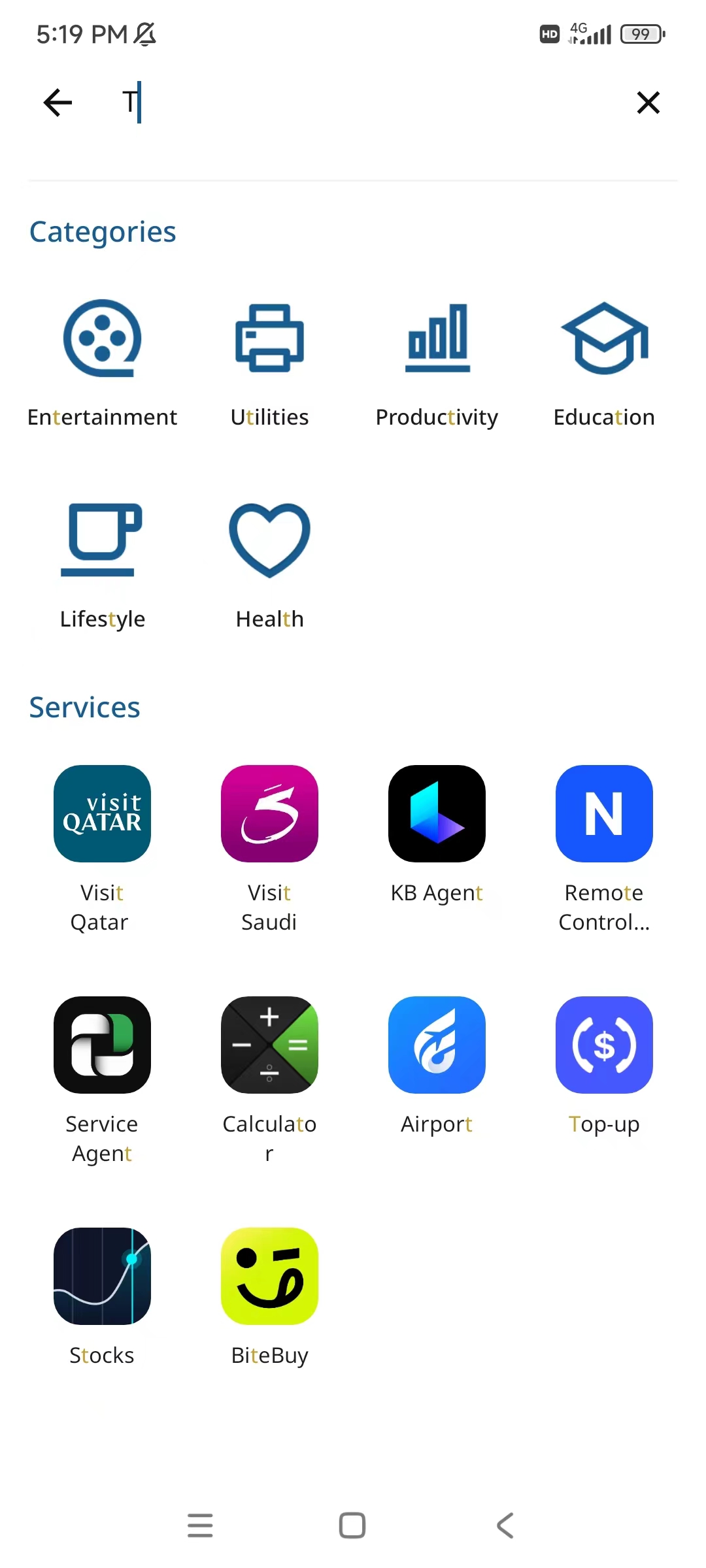
To view the categories and Mini App lists configured in the portal, navigate to the NSuperApp's search page. From there, you can click on the "Search" located at the top of the page. This Mini App store allows you to search for the configured categories and Mini Apps using keywords, making it easy to find the specific content quickly and efficiently.
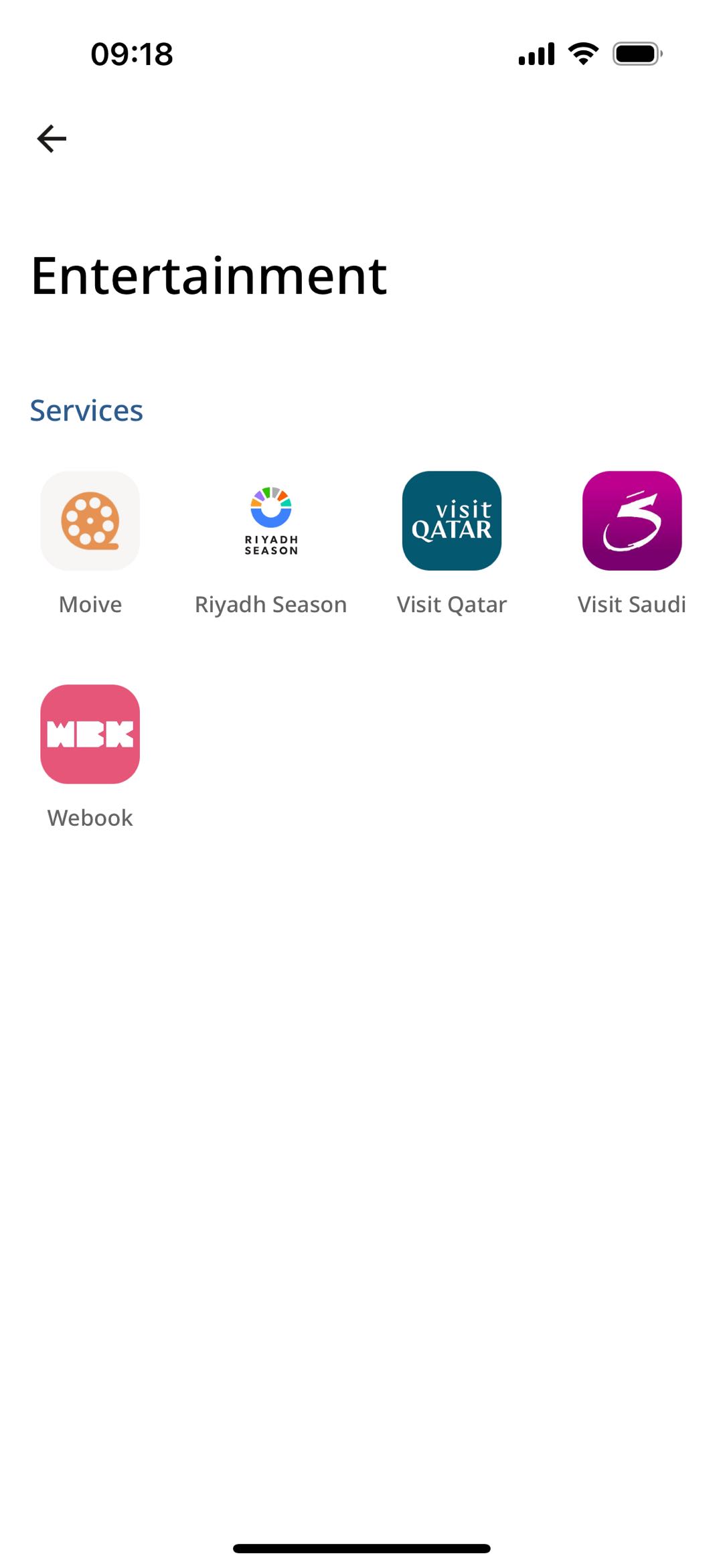
Manage Service Space
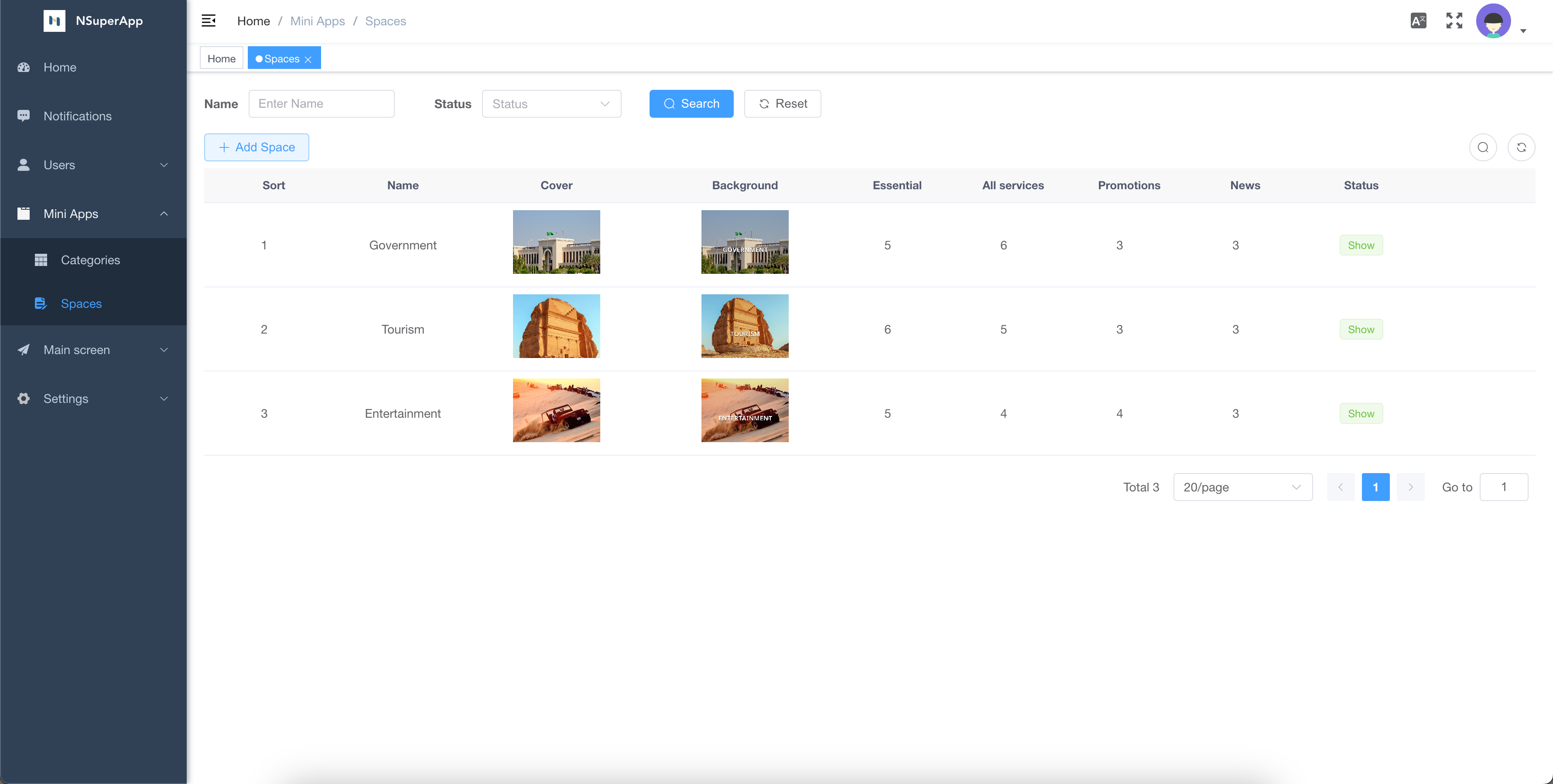
List Spaces in NSuperApp
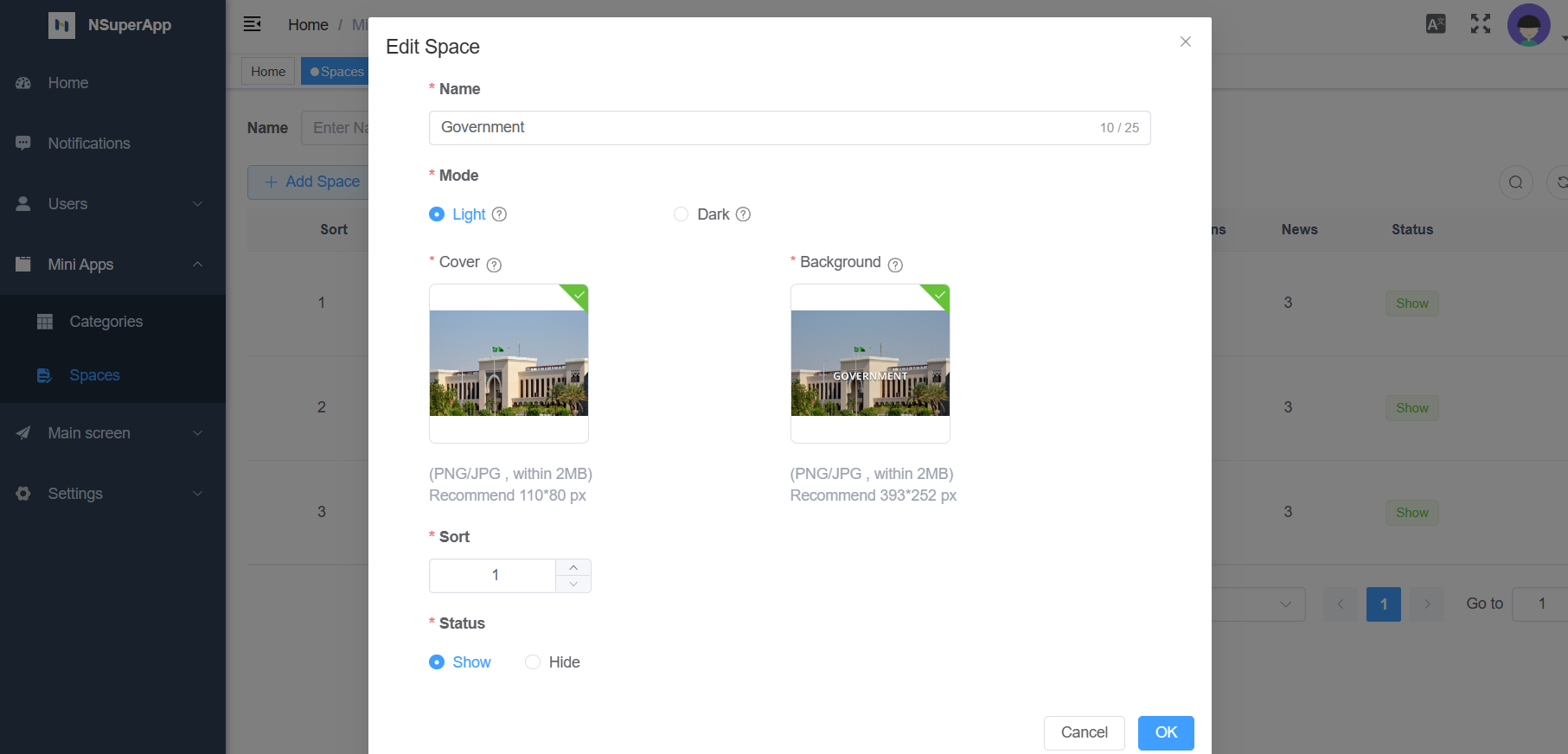
- Go to the space screen
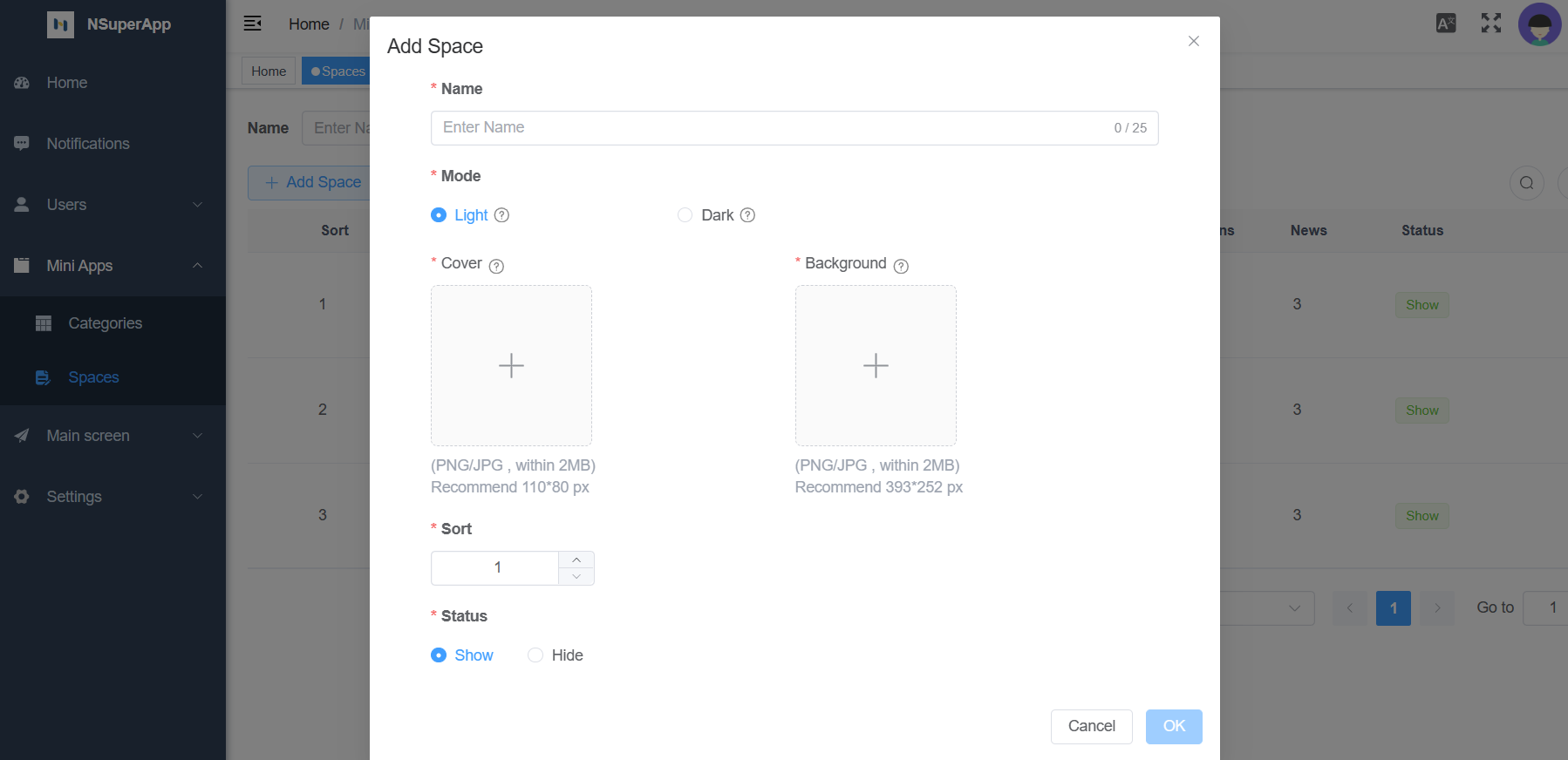
- Press on the "Add Space" in the top left.
- Fill in the space details.
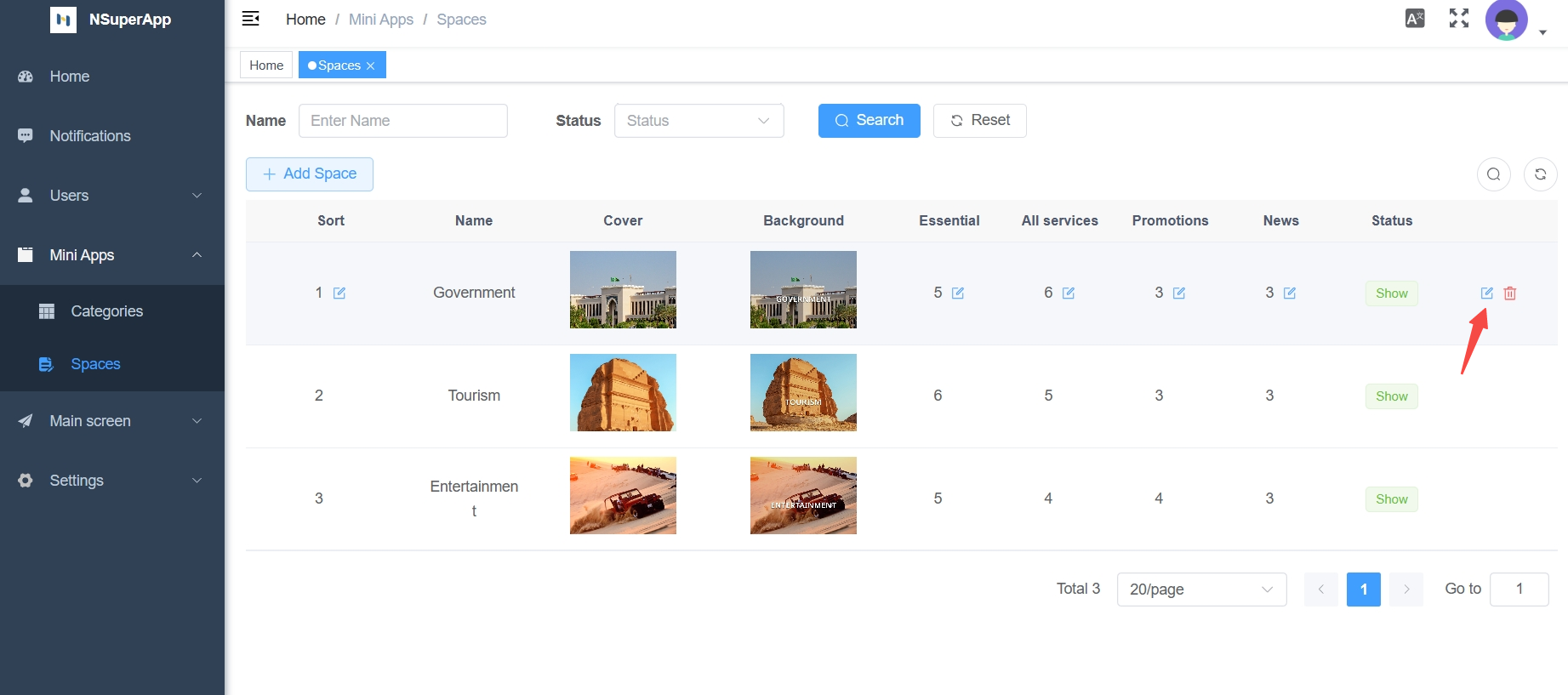
- To edit the space, go to the edit button shown on the third screen and perform the edition.
Configure Space Content
Configure Essentials in Space
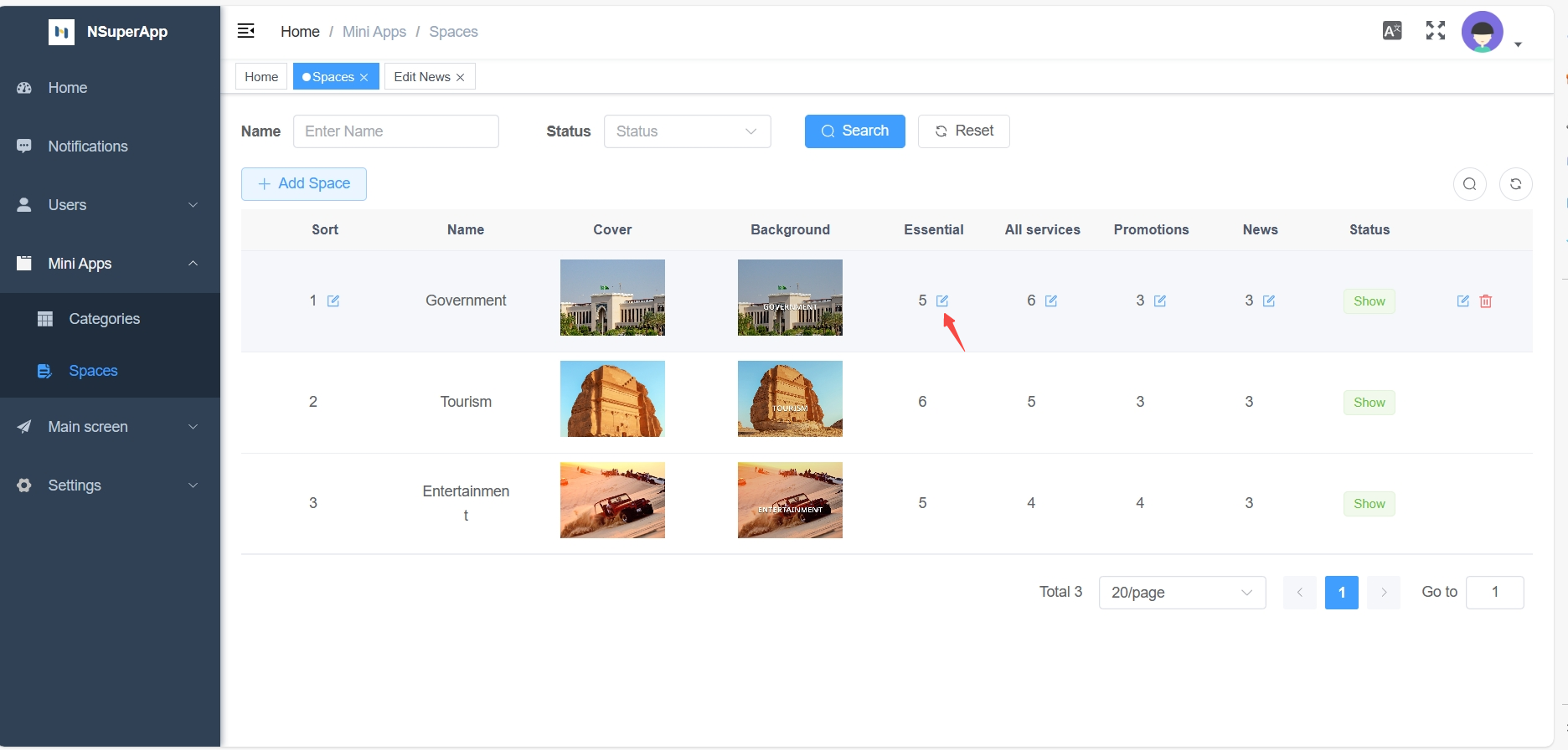
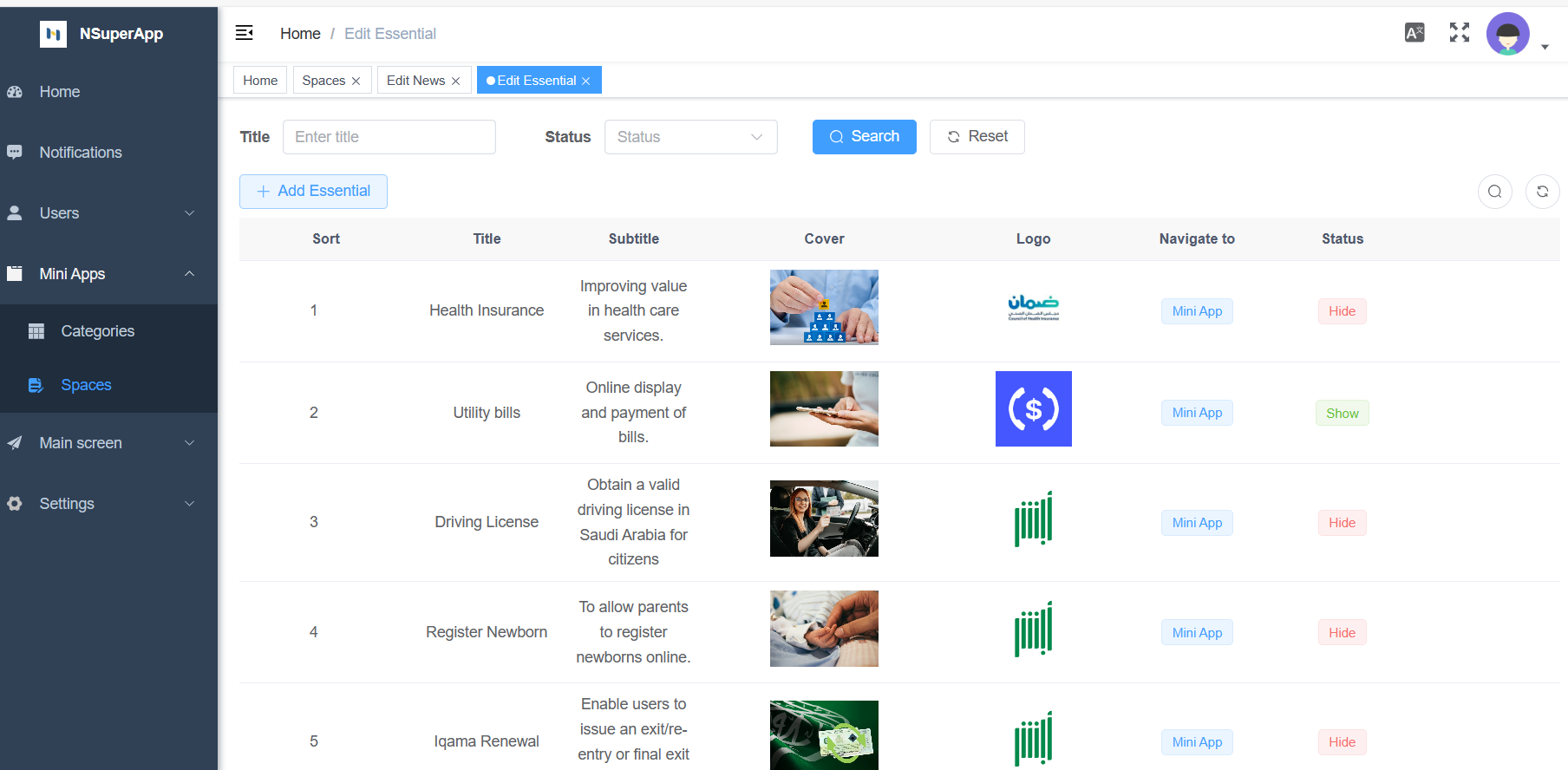
To configure essential services in a space:
- Hover over the specific space labeled "Essentials" until the edit button appears.
- Click on the edit button.
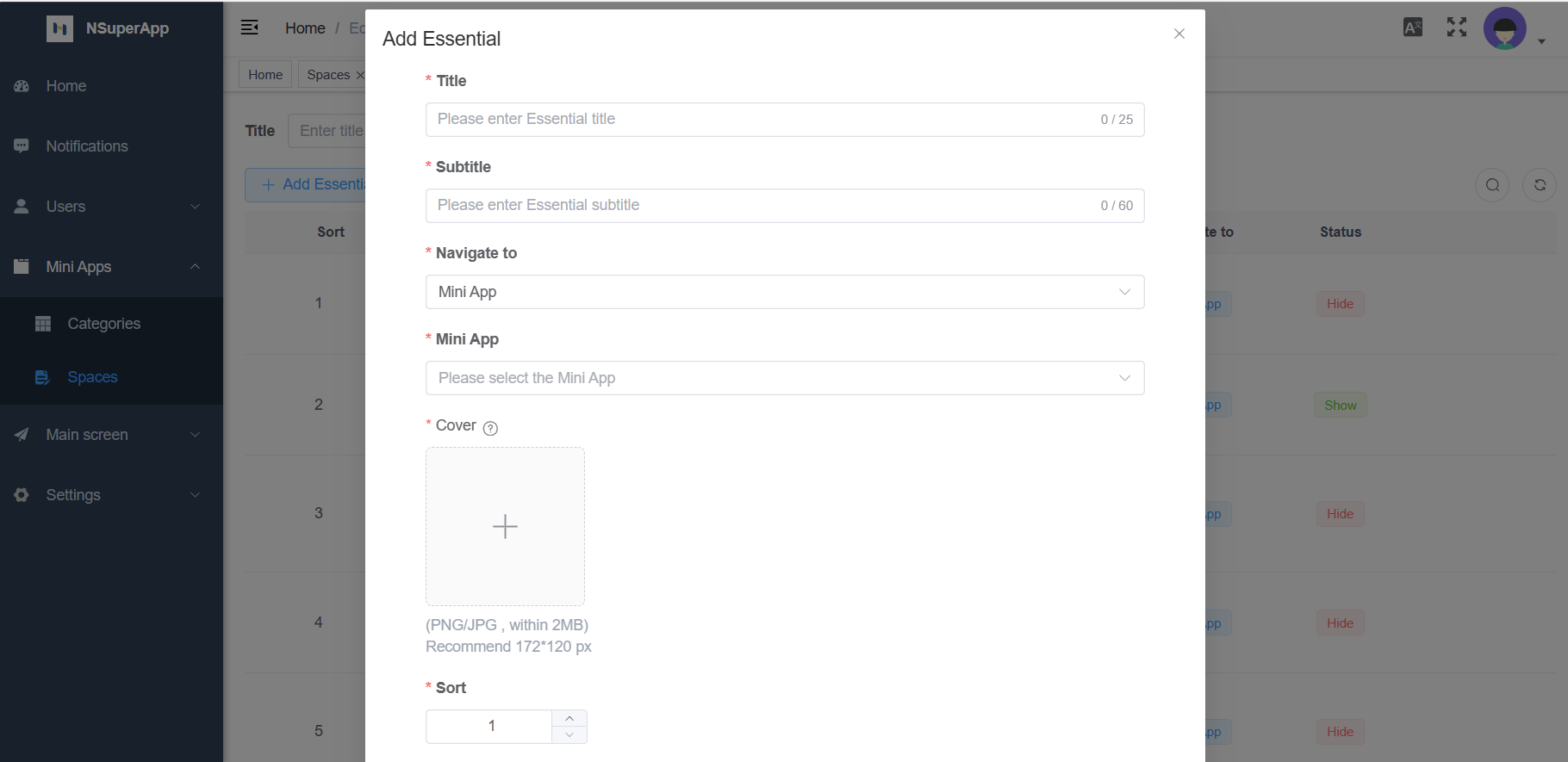
- Select "Add Essential".
- Fill in the required information.
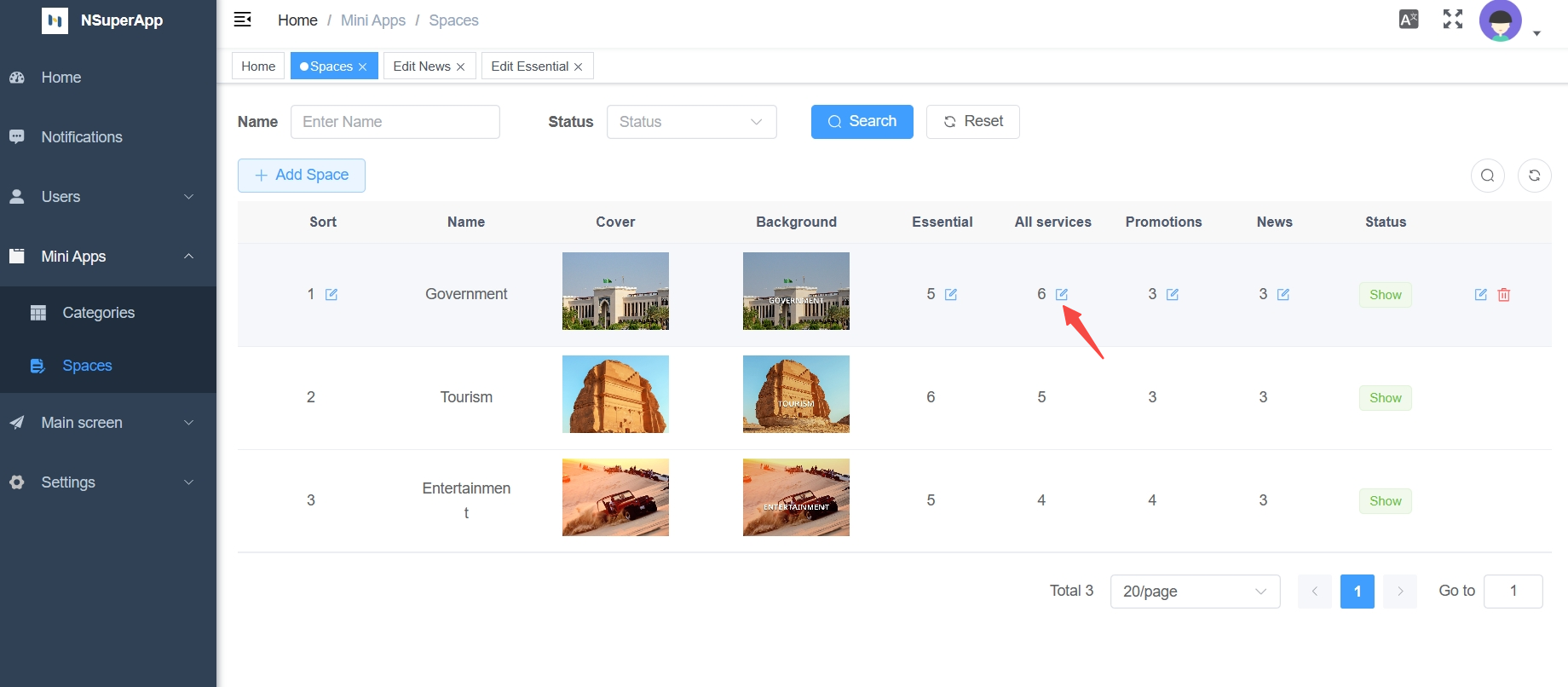
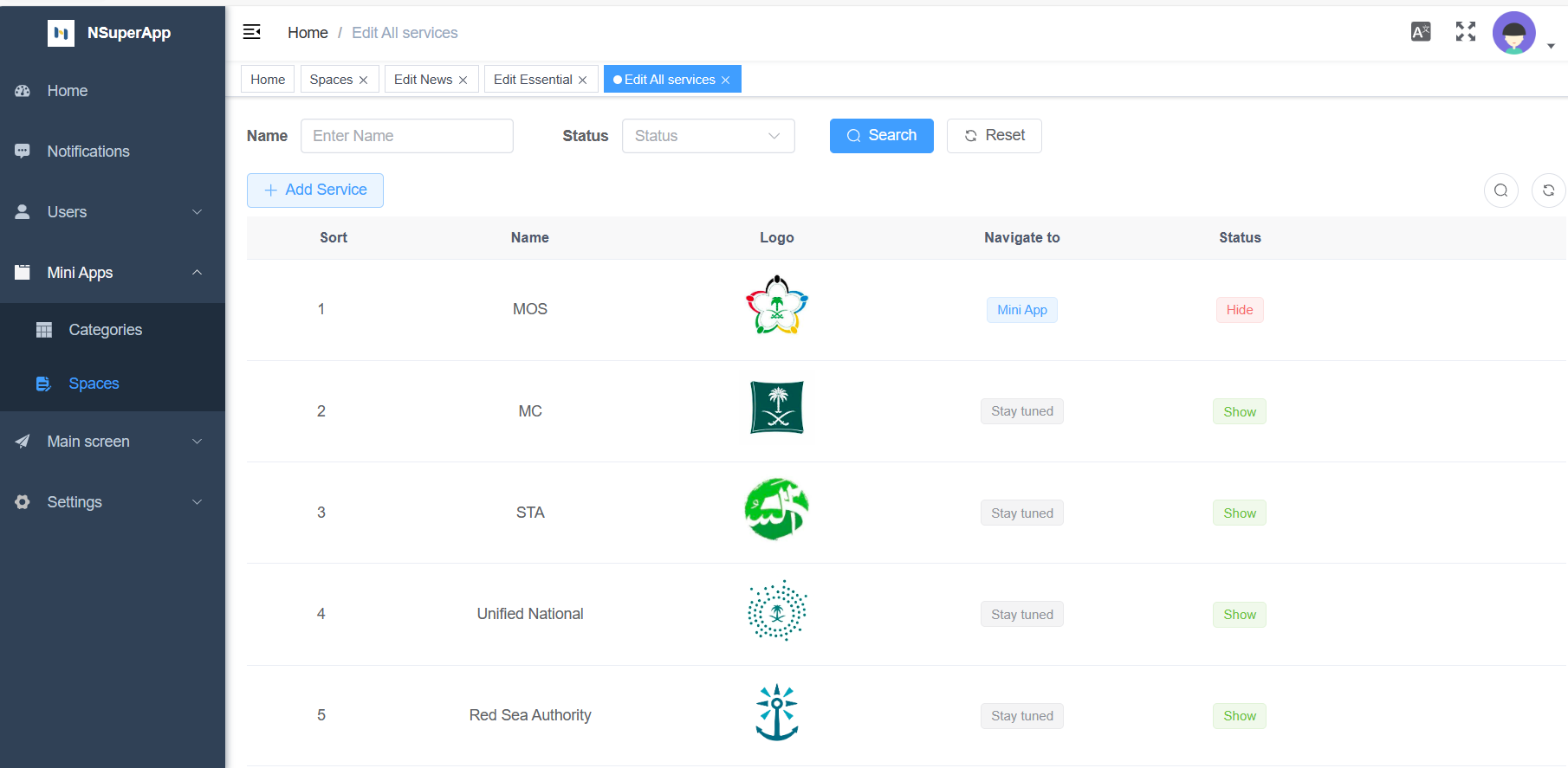
Configure All services in Space
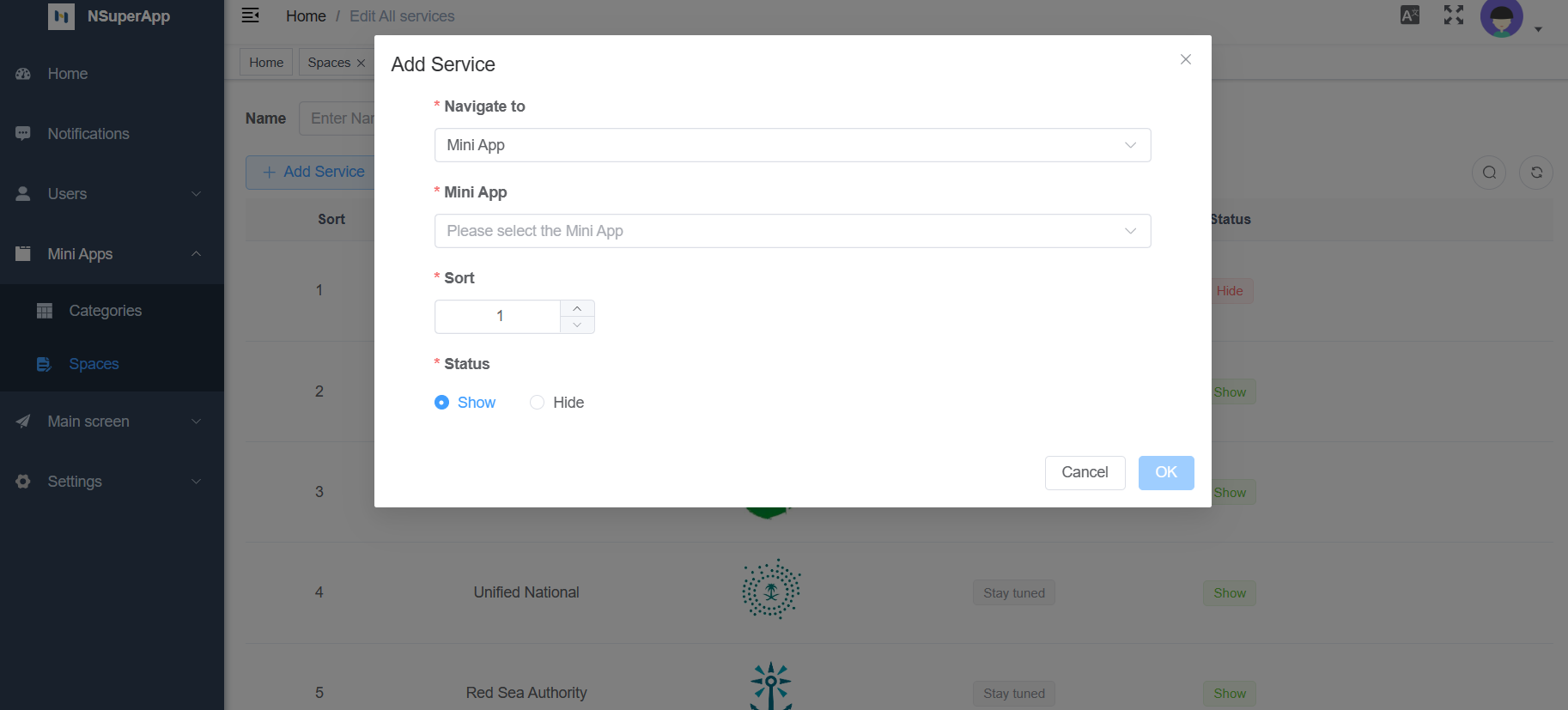
To configure all services in a space:
- Hover over the specific space labeled "All services" until the edit button appears.
- Click on the edit button.
- Select "Add Service"
- Fill in the required information.
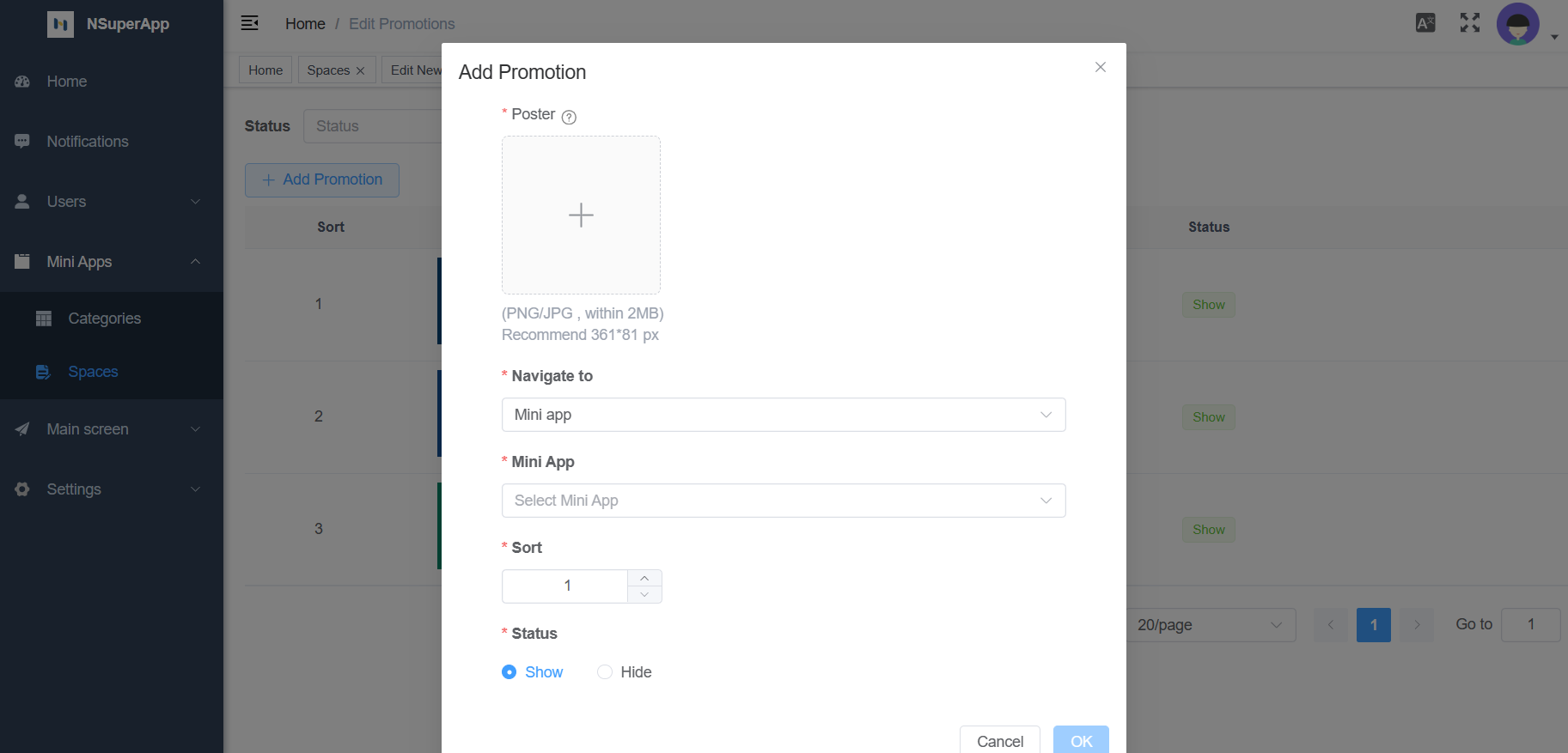
Configure Promotions in Space
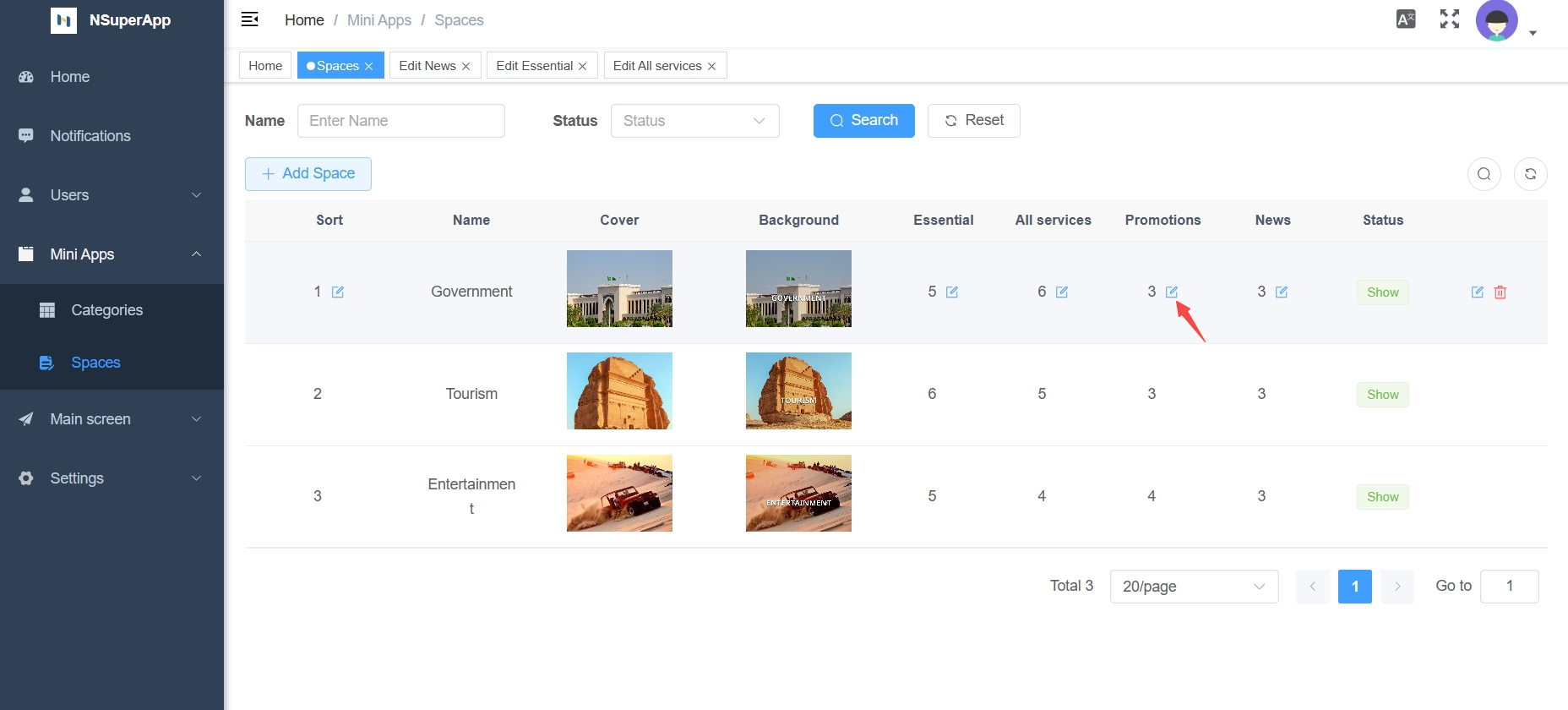
To configure promotions in a space:
- Hover over the specific space labeled "Promotions" until the edit button appears.
- Click on the edit button.
- Select "Add Promotion"
- Fill in the required information

Configure News in Space
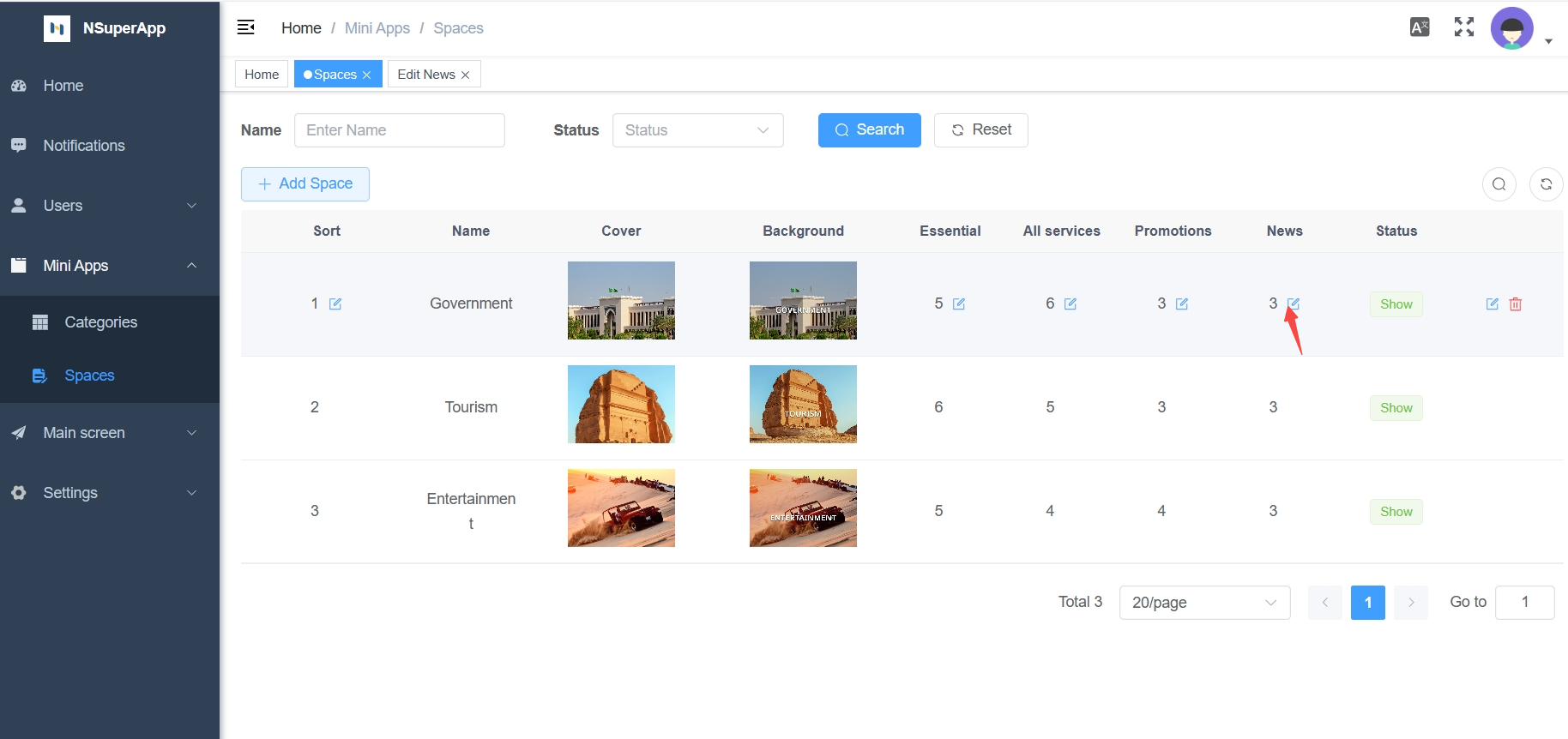
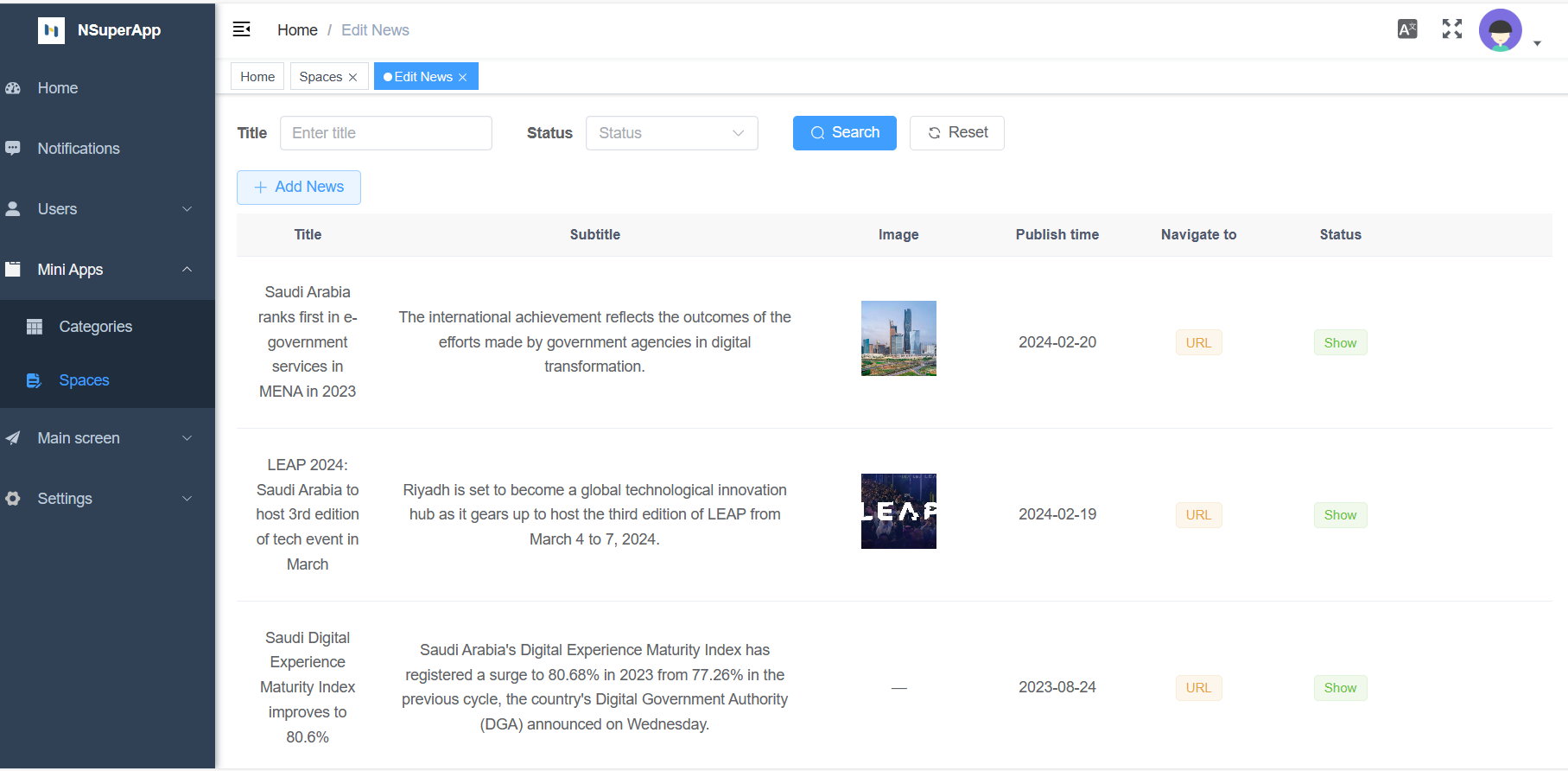
To configure news in a space:
- Hover over the specific space labeled "News" until the edit button appears.
- Click on the edit button.
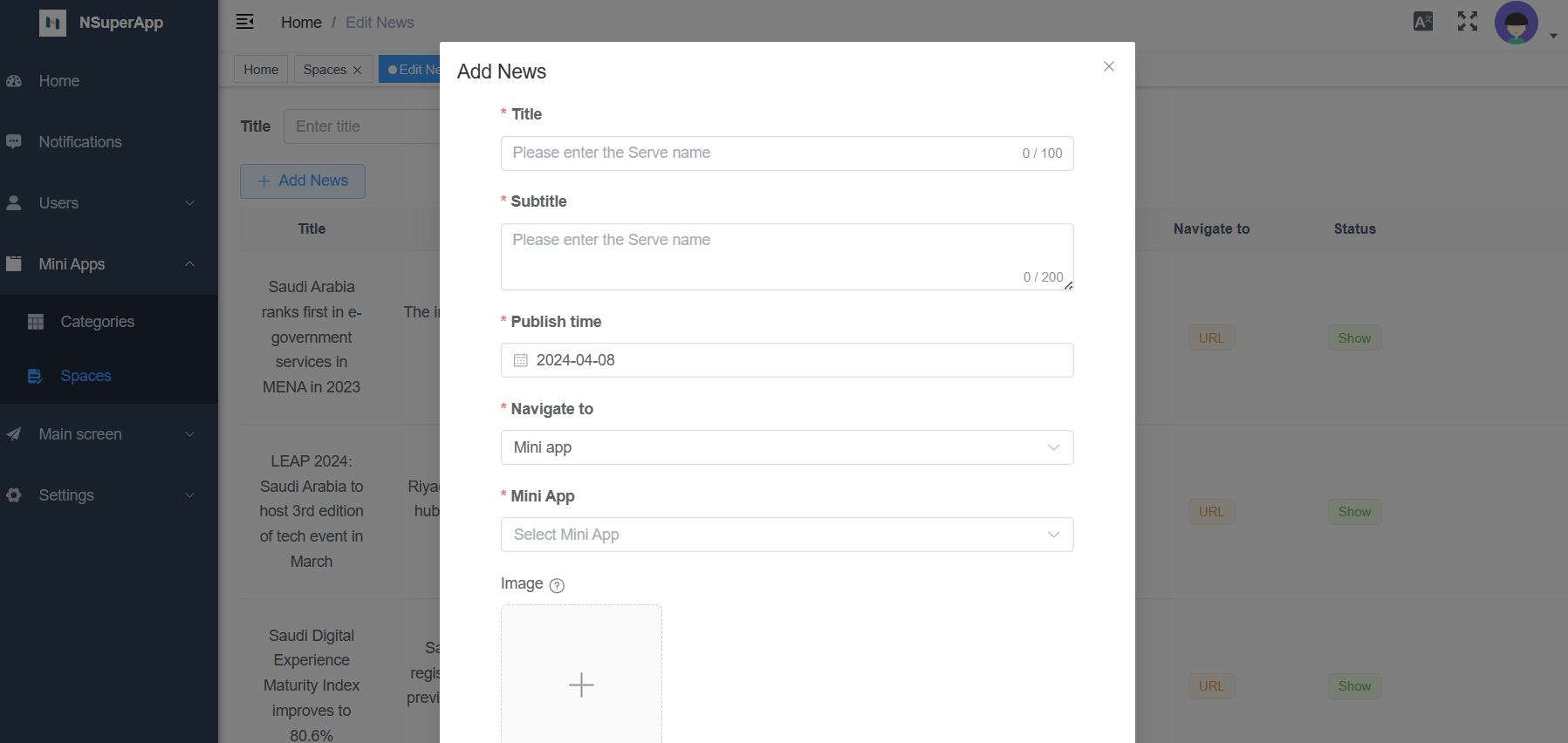
- Select "Add News"
- Fill in the required information
View Space
Within the NSuperApp, users have the ability to access and explore different types of content related to space, such as Essentials, All service, Promotions, News, and so on.